
Long lists fold away. A list that can run past the screen, such as an event's players, the tee sheet's groups or your payment history, has an arrow (›) in front of its title. Tap the title row to fold the list or open it again; the arrow turns down when it's open. Long lists start folded and short ones open, and the app remembers your choice for each list on that device.
Start scoring your round now
The quickest way to use Caravan Golf. Pick the players and the course, and we'll set everything else up for you: no club, event or setup needed first.
Start unscheduled round
Out with friends and want to keep score? Start unscheduled round takes you from the first tee to the scoring screen without any setup. Anyone with an account can use it, whatever their role.
It's also the quickest way to get going on Caravan Golf. In one pass you can start a club, bring in your group and add a course the app doesn't have yet. Everything it sets up stays for next time. Or skip the club entirely and just score the round.
How.
- Press Start unscheduled round on your home screen.
- Choose the club: - Any club you belong to. The round goes in that club. - Create a new club. Accept the suggested name or type your own. You're the CGO of the new club right away, and the people you add become its first members. When you're ready for scheduled events, it's all there. - No club, just this round. Nothing else is set up. The round is yours alone, and nobody joins a club. This is the choice already picked if you aren't in a club yet.
- Add the players. Type a name to search every club you belong to, or narrow it under Add from, then tap the person to add them. People already in a club come with their Handicap Index. If somebody isn't listed, or is a different person with the same name, tap Add as a new player at the end of the list. A Handicap Index for them is optional.
- Search for the course. If it isn't in the app yet, it's downloaded with its scorecard as soon as you choose it, and it stays in the app for next time. A club with several nines comes down with all of them.
- Choose the holes and tee if there's more than one, then press Start scoring.
Gotchas.
- The round is a private event for today, with nothing to pay, and it doesn't count toward season standings.
- New players are added by name only. In a club, they can be given an email later, under Players.
- A new club is made as soon as you press Add players, so leaving at that point leaves an empty club behind. No club leaves nothing behind.
- You run the round you started, even if you're a guest in that club. That covers scoring and closing it, not changing the club's other events.
- People you bring from another club join a new club as members, and an existing club as guests. An organizer can change that under Players. With No club, nobody joins anything.
- A round with no club doesn't show in any club's list of events. Open it from the Start scoring card on your home screen, or from the link you share with the group.
- Change on the players step takes you back to the club choice and keeps the players you've picked.
- If a course has no scorecard online, add its holes on Courses or choose another course.
Accounts and signing in
Signing in
What it is. One sign-in for everybody: players, organizers and CGOs use the same screen. What you can do is worked out from your account after you sign in: an organizer lands on the dashboard, a player on their events.
How. Open the app and choose the person icon, or follow any event link and sign in when asked. New here? Choose Create an account, enter your name, email and a password.
Gotchas.
- Use the email address your club already has for you. If an organizer added you with that address, your new account is linked to your existing record, with your handicap and events.
- Organizer access comes only from an invitation. Sign in first, then open the invitation link.
- After signing in you are taken to the page you were heading for, if you are allowed to open it; otherwise to your home.
Confirming your email
What it is. New accounts confirm their email address once, by opening a link we email them.
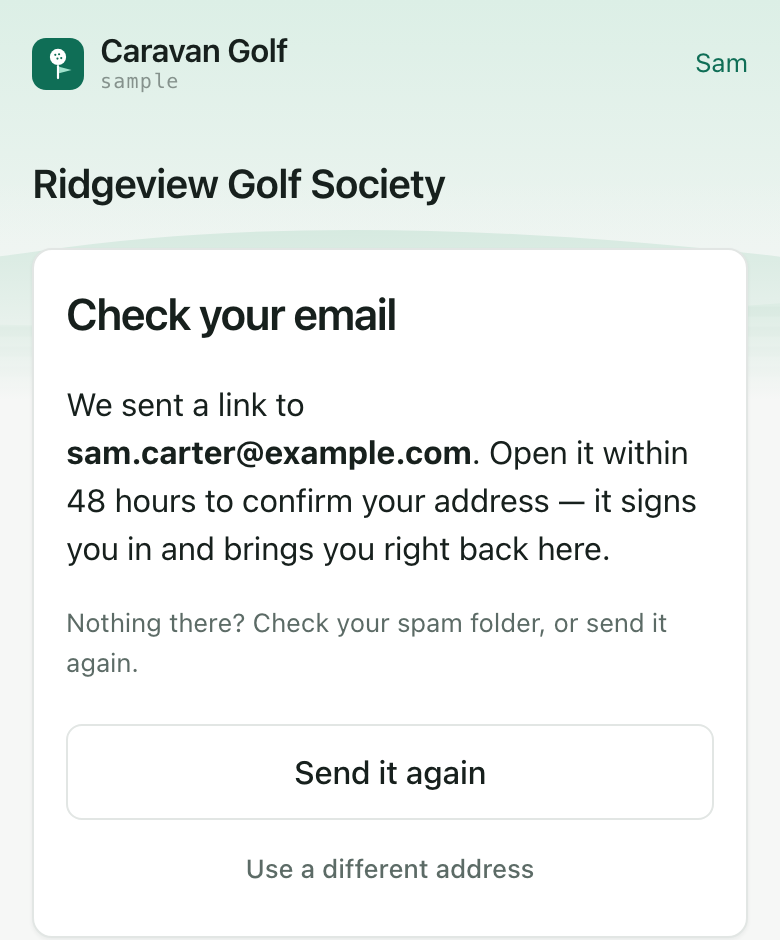
How. After signing up, open the email "Confirm your email for Caravan Golf" and press the button. The link works for 48 hours.
Gotchas.
- Not in your inbox? Look in Spam or Junk. Mark it "Not spam" and add [email protected] to your contacts so later emails arrive normally.
- Link expired? Just sign in with your email and password: the app sends a fresh link and shows Send it again.
- An organizer can also send you a new link, or give you a temporary password, which confirms your address at the same time.
Forgot your password
How. On the sign-in screen choose Forgot your password?, enter your email and press Email me a link. The link works once, for 48 hours, and lets you choose a new password.
Gotchas.
- Check your spam folder for "Reset your Caravan Golf password".
- No longer have that mailbox? Choose to ask an organizer instead. They can change your email or issue a temporary password.
Your details
What it is. Your name, email, mobile, GHIN number, Handicap Index, card (men's or women's tees) and shirt size. To open them, tap your name at the top of the screen.
Gotchas.
- Only organizers see your email and mobile. They are not on rosters, shared lists or exported files.
- Your email is also how you sign in. Change it here and you sign in with the new one next time.
- Sign out is at the top of this screen too, on the Me tab. It signs you out on this device only.
- Without a GHIN number and an index, your scores cannot be posted and you play off gross.
- Enter your Index (for example 14.2), not a course handicap. The app works out the course handicap for each tee and course.
Deleting your account
How. On Me, at the bottom, choose Delete my account…. The app says what will happen first, then you press Delete my account.
Gotchas.
- Deleted: your sign-in, email, mobile, GHIN number, notifications and any organizer roles. You're signed out everywhere.
- Kept: your name on events already played and payments already made, because those are the clubs' records.
- Money on account with a club stays with the club, so ask for it back first.
- It can't be undone.
Notifications
What it is. A buzz on your phone when someone puts you in a competition, when an event you paid for is canceled, and when money on your balance could pay an event you owe.
How. Allow notifications when the app offers them. Each phone or computer is its own switch.
Gotchas. In a browser on iPhone, notifications only work once the web app is added to your home screen (Share → Add to Home Screen); the iPhone and Android apps get them as soon as you allow them. Important notices about money you paid are also emailed.
The apps and the web app
What it is. Caravan Golf runs on the web today, and its iPhone and Android apps are almost ready for the App Store and Google Play. The web app works in any browser, and you can add it to your phone's home screen so it opens like an app (on iPhone: Share → Add to Home Screen).
Mix and match. Everyone, whether CGO, organizer or player, can use whichever they like: the iPhone app, the Android app or the web app, and switch between them any time. They all show the same club, the same events, payments, tee times and scores, as they happen. An organizer on a computer, a scorer on an iPhone and a player on Android all work on the same round at once.
Following along. Anyone following just the leaderboard can do it from the apps or from a browser, with no account needed.
Updating the app
What it is. The app updates itself: when you open it, when you come back to it, and every few minutes while it's open.
How. To update right now, open Me and press Update the app, or press Refresh at the top if the app is installed on your home screen. It fetches the newest version fresh from the server and says which version you're on when it's done.
Gotchas.
- Scores you entered with no signal are kept on your phone through an update.
- With no connection the app can't update, and says so; your current copy keeps working.
- Your version number is on Me, under About Caravan Golf. Quote it when reporting a problem.
- The iPhone and Android apps are updated through the App Store and Google Play.
Clubs and roles
Who does what
- Player. Signs up for events, pays, keeps score and plays in competitions.
- Organizer. Runs events for the club: creates events, manages rosters, confirms payments, closes rounds.
- CGO (Chief Golf Organizer). Everything an organizer does, plus the club's settings, its organizers, who collects card payments, and balance corrections.
- Admin. Runs Caravan Golf itself. The admin never collects any club's money.
Joining a club
What it is. Being in a club: you see its events, sign up for them, and appear in its player list.
How.
- New to Caravan Golf: create your account. If a club already has you on its list (with the same email address), you're in it straight away. Otherwise home screen lists the clubs on Caravan Golf: tick the ones you play with and press Join. You can join as many as you like.
- Already in a club: on your home screen, press Clubs, then Join a club to add another.
- From an event link: taking a spot in a club's event makes you a member of that club automatically.
- Running your own group? Press Clubs, then Start a new club. It asks your club's name and a short name, and you become its CGO; we email you a confirmation with a link back to your club. Anyone can do this, at any time, whatever clubs they're already in.
- Then it walks you through setup, one question at a time: how players pay you, your courses, your players, your organizers and your first event. Each question opens the screen where it's done and comes back to the next one. Press Skip for now to leave one for later, or Finish later to stop; the Set up your club checklist on your home screen keeps what's left, and Walk me through it there picks up again.
Gotchas.
- You join from the list as a guest. The club's organizers make you a member: on Players, they open Contact & sign-in for you and uncheck Guest. Guests can sign up for events; a season's standings may leave guests out.
- Joining makes you a player. To organize events, ask the club's CGO to invite you as an organizer.
- If your club isn't listed, it may not be on Caravan Golf yet. Ask whoever runs it, or start it yourself.
Being in more than one club
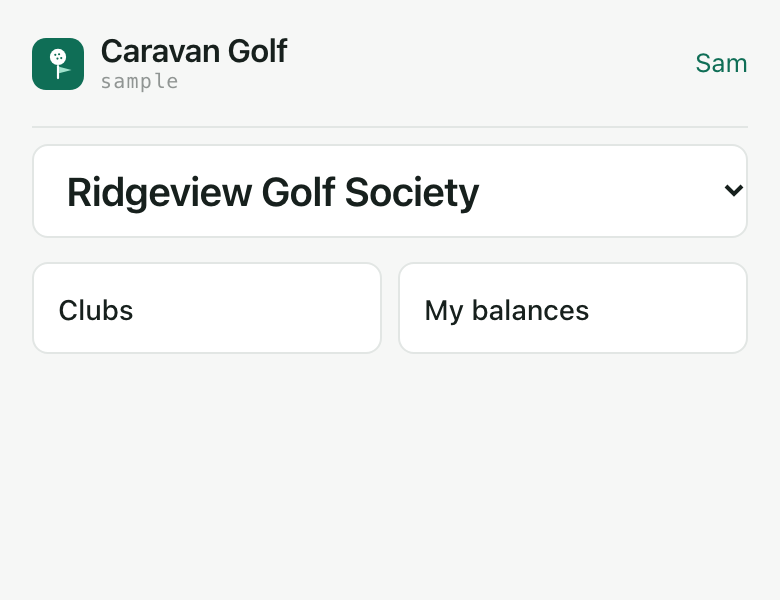
How. Your club is named on its own row at the top of every screen, under the app name. If you belong to two or more clubs, it's a picker: choose a club to see its events, players and balance. Clubs on your home screen lists every club you're in and your role in each. Press Open to go to one.
Gotchas.
- Opening an event's link puts you in that event's club automatically.
- Someone who belongs to no club yet sees the app as a guest. Their balance shows "You're not in a club yet".
Club settings
What it is. The CGO's settings for the club: name and short name, look, low-funds line, who collects card payments, and the GHIN posting page.
How. Press the gear beside your club's name at the top of the screen. Only the CGO sees it.
Gotchas.
- The short name is what shows in the header, where the full name would not fit.
- The low-funds line: members at or below it are reminded to top up. Leave it empty for no reminders.
- Who collects direct payments (Zelle, Venmo, cash) is set on each event, not here.
Organizers and invitations
How. The CGO opens Organizers and invites someone by name. They get a link. Once they sign in and open it, they are an organizer of the club.
Gotchas.
- Inviting someone who already has an invitation out gives you that same invitation again, so there's only ever one link per person. Rescinded or used, and a new one is made.
- Co-organizers of a single event can run it but cannot change who receives the money.
- Running an event does not sign you up to play in it. Take a spot like everyone else.
Players
Finding and adding a player
What it is. The club's Players list, its directory of golfers, with one search box for finding people and adding them.
How.
- Type a name, email or GHIN number in Find a player. Your club's people appear as you type.
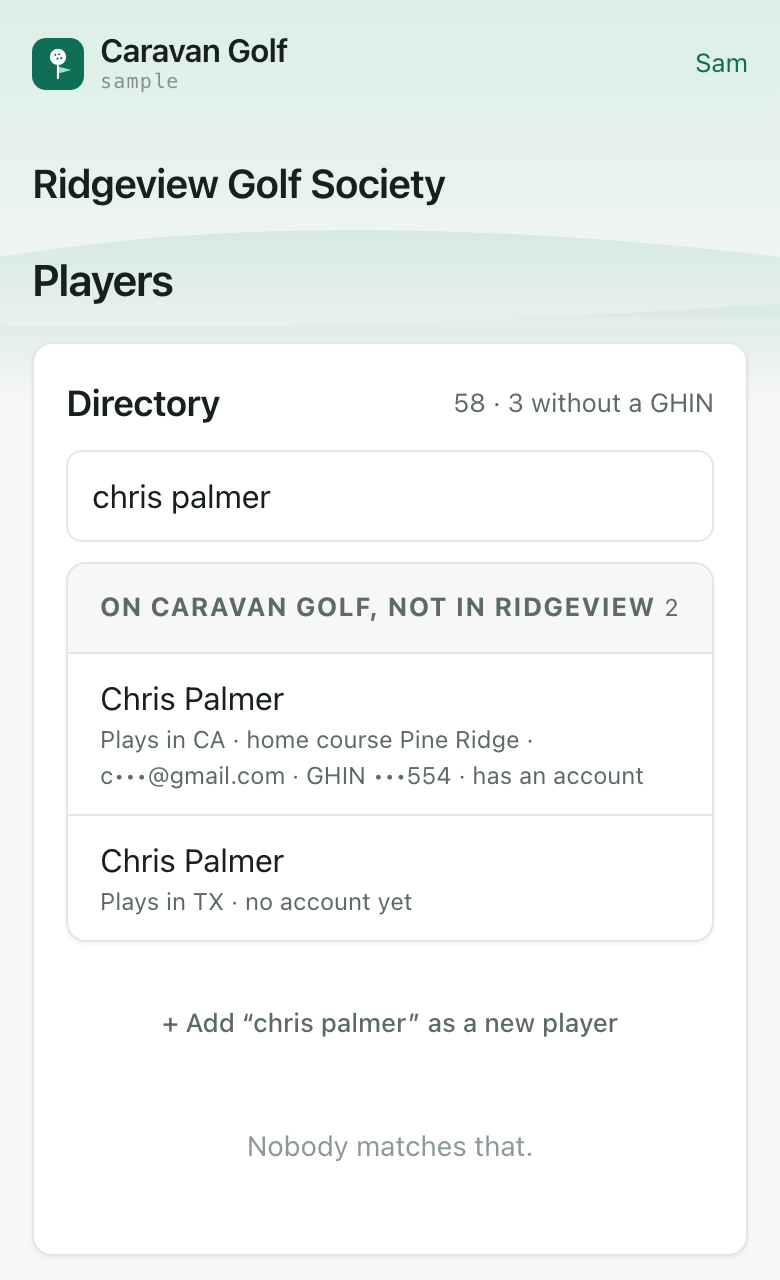
- Someone on Caravan Golf but not in your club? Type their exact email, GHIN number, or full name with the last name spelled exactly right. They appear under "On Caravan Golf, not in your club" with where they play (for example "Plays in CA"). Tap the person to add them to your club.
- Nobody found? Press + Add "…" as a new player and fill in their name, email, mobile, GHIN and index.
Gotchas.
- A first name or last name alone never lists people from other clubs. Use their full name, email or GHIN.
- Add their email whenever you can. When they sign up with it, their account is linked to this record instead of making a second person.
- If the email or GHIN you enter is already on someone, that person is added to your club instead of a duplicate.
Contact details and sign-in help
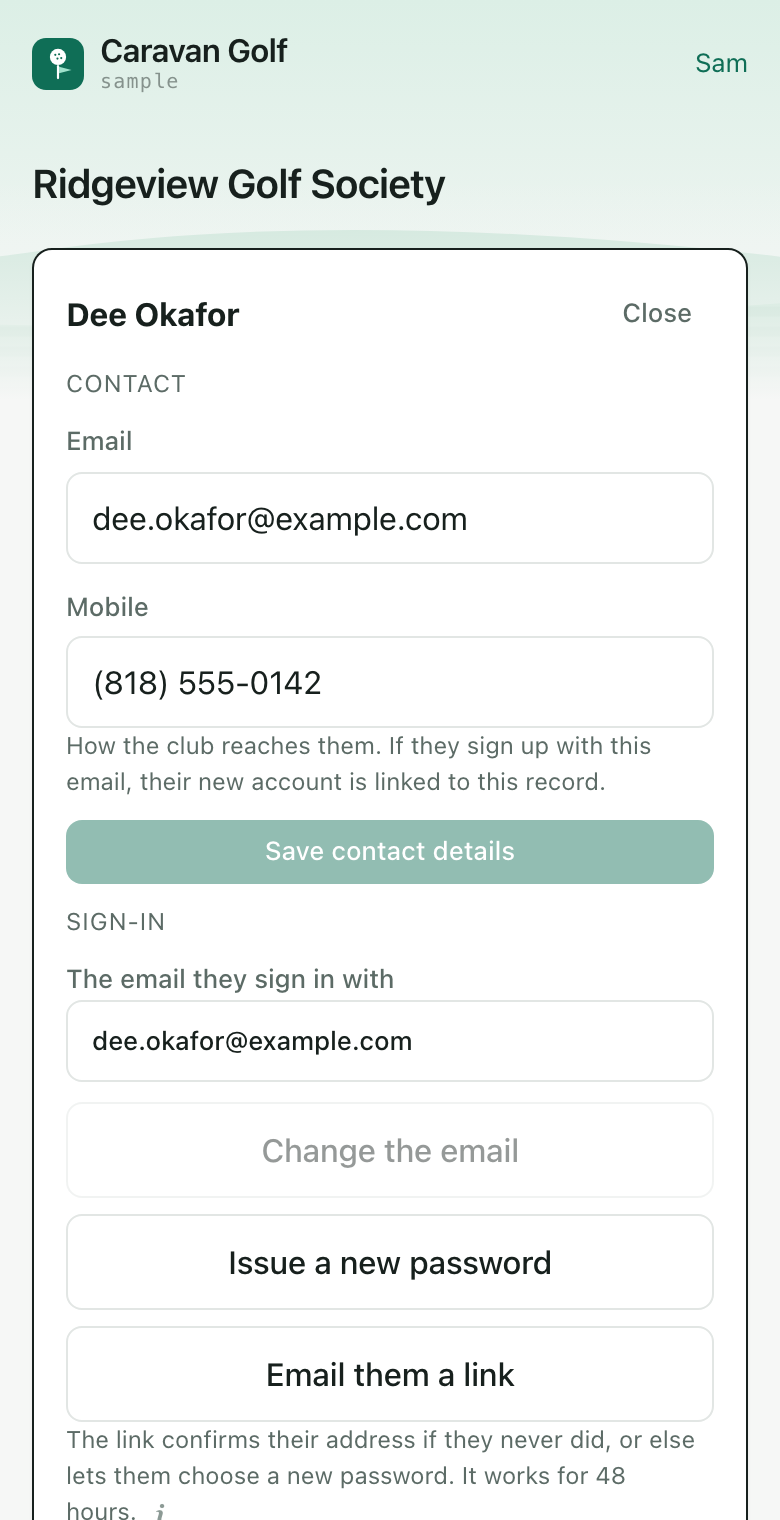
What it is. Under each player in the list, Contact & sign-in opens their email and mobile, and the tools for getting them into the app.
How.
- Contact: correct their email or mobile and press Save contact details.
- Email them a link: sends the link that gets them in. It confirms their address if they never did, or otherwise lets them choose a new password. It works for 48 hours.
- Issue a new password: makes a temporary password, shown once. Send it to them. It also confirms their address, so they can sign in straight away.
- Change the email: changes the address they sign in with.
- Guest: check it for somebody who plays in the club's events without being a member. They show as "guest" in the list, and a season can leave guests out.
- Clubs (in the sign-in panel): which clubs the account is in, and adding it to one more.
Gotchas.
- Organizers can do this for players in their club. Only the CGO or the admin can do it for another organizer.
- The temporary password is shown once and never stored. If it is lost, issue another.
- An address already on another player is refused. If it is the same person, merge the two.
Importing a list
How. On Players, import a tournament sheet, a club export, or any file or pasted text with a column of names. You check every column before anything is saved.
Gotchas. Somebody already in the list is matched on their GHIN number, or on their name where there is no number, and updated rather than added twice. Nothing is deleted. Check the suggested pairs afterwards.
One person, two records
How. Press Merge beside a player and choose the other record, or press Compare on a suggested pair. The two appear side by side with their email, sign-in, GHIN, events, payments and clubs. Press Keep on the one to keep, read what will happen, then press Merge.
Gotchas.
- The app suggests likely pairs at the top of Players: names that look alike, including the same first and last name with a different middle or hyphen, or the same mobile or email. "Different people" stops it asking about a pair again.
- If both have a sign-in, only the Caravan Golf admin can merge them, because either email then opens that person's account. Both emails keep working, each with its own password, and any organizer role stays with them. Both emails show on the person's record and their profile, and searching the Directory by either one finds them. The admin can link or unlink a merged email later under Fix a sign-in.
- Two different GHIN numbers stop the merge until the wrong one is cleared.
- If both hold a place in the same event, the merge keeps one: the one with money on it, or else the confirmed place over a waitlisted one. If both have paid, settle one first.
- You choose which of the two names to use when you merge. A name that's wrong on a record (an old test name, a nickname) can also be corrected in its name box on the list. Signing up for an event never changes it.
- A merge can't be undone.
Handicaps: HI and CHI
- HI is the player's Handicap Index, their own.
- CHI is the Course Handicap, worked out from the HI, the tees and the holes being played.
Gotchas. Always enter the index, never a course handicap. Course handicaps for nine-hole rounds are worked out for nine holes. A plus handicap (better than scratch) is shown with a plus sign, such as +2.1. To enter one, type the + (or a −) before the number. iPhone number keypads have neither key, so enter plus handicaps from a computer, or from an Android phone, whose keypad has a −.
Courses
Finding a course
How. On Courses, search by name. If the same course shows up more than once, pick the one with ratings, slopes and stroke indexes. Not there? Create it yourself, or read it from a photo of the scorecard.
Clubs with three or more nines. Check the club's one row and import it. When a database lists the club's pairings, you get every nine and every pairing, each played either way round, with its ratings and stroke indexes. The review screen tells you what is coming in, for example "3 nines, from 6 listings", and you save it all as one course. A club listed only as separate nines arrives as those nines, and you set up the pairings yourself.
Gotchas.
- "No card" means the database knows the course but has no hole data yet. "Not rated" means no course rating or slope.
- The town is how two clubs with the same name are told apart.
- A search row can name fewer nines than you end up with. The review screen is the one to trust.
- A database may list a pairing in only one order, and Caravan Golf builds the other from it, giving the nine played first the odd stroke indexes. Some clubs print it differently, so check those rounds against the scorecard.
- Tees a database doesn't have for a pairing stay blank rather than being guessed. Add them from the scorecard.
- Importing a club you already have adds to it. Anything you corrected is never overwritten.
- A course already on file shows Already here, with a way to open it. To start it over, delete it first.
Your club's name for a course
What it is. A course is listed under one name for every club that plays it. If your club knows it by another name (Pine Ridge Golf Course, known locally as Pine Ridge Links), give it your club's own name.
How. Open the course and press Rename. Type what your club calls it and press Save name.
Gotchas.
- Only your club sees the name: on the Courses list, the course page, the event form and new events. Other clubs keep the listed name.
- The listed name stays underneath ("listed as …"), so it can still be found.
- Clear the box, or type the listed name, to go back to it.
Starting an event from a course
How. On Courses, press Schedule an event here under one of your club's courses, or on the course's own page. The new-event form opens with that course already chosen.
Removing or deleting a course
What it is. Two different things. Remove takes a course off your club's list, and the course stays on file. Delete course erases the course and everything set up on it.
How.
- To remove: on Courses, press Remove under the course. You can press Add to club to bring it back at any time.
- To delete: open the course and press Delete course. The app tells you what goes with it and asks first.
Gotchas.
- Deleting can't be undone. Events already played here and their scores stay. An upcoming event here needs a course chosen again.
- After you remove a course, a search still shows it as Already here, because it's still on file. Only deleting clears it.
- You can delete a course your club added, as long as no other club uses it. Otherwise, write to support.
Reading a scorecard
How. On a course, choose to read a card: a PDF from the club's website, a screenshot, or a photo of the card in your hand. Check the rows, uncheck anything you want to leave alone, then apply.
Gotchas.
- Every number read is checked against the card's own totals before you see it, and nothing is written until you say so. The file is never stored.
- One card at a time. A 27-hole club's other cards can be read into their own courses.
- A tee row that did not reach nine numbers, or did not add up to its own total, is not offered.
Tees, ratings and yardages
What it is. A tee is one set of markers, one set of yardages, and up to two ratings (men's and women's).
Gotchas.
- A card that prints a single unprefixed rating ("Black 73/128") goes in the men's boxes. Check "played unisex" if your group plays it that way.
- Ratings come from the card, or from the USGA course rating database (ncrdb.usga.org). A wrong rating quietly wrongs every net score, so check it.
Stroke indexes
Stroke indexes belong to the course, so they go in once and every round on those holes inherits them. They run 1 to 18 across the whole course: a nine holds whichever of those numbers fall on it, not a fresh 1 to 9.
Rounds on a course
A round is one nine, or two of them together, with its own tees and ratings. An event picks one under Which holes.
Clubs with three or more nines. Each pairing can be played either way round, and each order is a round of its own, because the stroke indexes usually change with which nine goes first. A club with Lake, Hills and Valley nines has six eighteens: Lake + Hills, Hills + Lake, Lake + Valley, Valley + Lake, Hills + Valley and Valley + Hills. A club with two nines has one eighteen, front then back.
How to add one. Open the course. Under Rounds you can play, press Set one up, choose under Which round to add, then press Set up. If the same two nines are already set up in the other order, the tees, ratings and yardages are copied across, so there is nothing to retype.
Gotchas.
- Set one up only appears when there is a round left to add, on a course you can edit. Set up all adds every round left in one press.
- A round added here gives the nine played first the odd stroke indexes, which is the most common layout. Some clubs print it differently, so check it against the scorecard.
- Starting a two-nine club on the tenth tee isn't a different round. It's still the same eighteen.
Tee rules
What it is. Rules that decide who plays which tees, read as a sentence: "men with an HI of 15 or under play the Blue tees".
How. On the event's roster, once players are on it, choose write a rule under Tee rule. Players' tees can also be set one at a time on the roster.
Gotchas. The index decides, not the course handicap. Rules are tried top to bottom, so finish each card with a blank limit meaning "everyone else".
Events
Creating an event
How. On the home screen, choose Schedule an event. It asks one question at a time, with Back to change an answer:
- Start from an earlier event? Pick one to copy its setup (see Starting from another event), or Start from scratch. Asked only once your club has events.
- What's it called, and when is it? The name, date, tee time and time zone.
- Where are you playing? The course and which holes.
- Who can play? The number of spots, whether it's private, whether it counts for the season, and when sign-ups close.
- What does it cost? The price per player, how players pay, and what happens to their money if plans change.
- Who collects the money? One person, or several if more than one booked tee times. Asked only when players pay directly.
- Anything players should know? Notes for players, whether to open it for sign-ups now or save it as a draft, and every answer with Change beside it. Press Create event, then share its link.
Editing an event later shows all of it on one page.
Choosing which holes. Pick the course, then choose under Which holes. Every round set up on the course is listed there, for example "Lake 9", "Lake + Hills: 18" or "Hills + Lake: 18". At a club with three or more nines, make sure you pick the order you'll play, since the stroke indexes can change with it. If a pairing isn't listed, add it to the course.
Don't know yet? Many clubs only tell you which nines you have when you arrive. Choose Decided on the day, and players can still sign up and pay in the meantime. When you find out, open the event and choose under Which holes.
Gotchas.
- Nobody can score until the holes are chosen, so set them before the first group tees off.
- If the starter sends everyone somewhere else, change Which holes on the event. The app shows what moves before you confirm: scores are kept, and a player whose tee isn't on the new round is left without one until you choose again.
- Once scores are in, you can correct which holes were played, but you can't go back to Decided on the day.
- Time zone starts as your own. Change it if the course is in another one: the tee-time reminder goes by it.
- An interest list covering the date? Add its people from the event's page.
- Pars and stroke indexes come from the course. Which tees each player plays is set later, on the event page, and only if you want to.
- A price of 0 makes a free event: players just accept or withdraw.
- Counts for the season is checked for every new event. Uncheck it for an event played for itself, and it earns no season points.
Starting from another event
How. On any event, past or upcoming, choose Use as a template, or on Schedule an event pick it at the first question, Start from an earlier event? It's the quick way to set up the next round of a series for the same group. The form fills in from it: name, course and holes, tee time, spots, price, who collects, payment and refund rules, and who can see it. Change anything that's different this time, and pick the date.
It also brings, each of which you can leave out:
- Rounds, on the same days relative to the new date, each with its course.
- Co-organizers.
Scoring and pairing settings come along too. Players and competitions don't: this event's players come from its interest list, sign-ups and the people you add, and its competitions are set up for them. Payments, scores, tee sheets and results never come along; they belong to the day they happened.
Gotcha. A played event can't be moved to a future date: that would turn its round and results into a game that hasn't happened. Its date can still be corrected to an earlier day. To run it again, use it as a template.
Private events
What it is. A private event isn't listed anywhere for the club. It's seen by you, the organizers you add to it, the players on it, and anybody you send its link to. The link is the invitation: whoever opens it can see the event and take a spot. Without the link, nobody can find it.
How. Private event is checked when you create an event. Uncheck it to open the event to the whole club. You can change it later in Edit.
Gotchas.
- Send the link only to the people you're inviting. Anyone it's forwarded to can open it too.
- Organizers, including the club's CGO, only see it in their lists once added to it.
- Each round of a multi-round event is as private as the event.
- Events created before this feature stay open to the club.
Adding players to an event
Players usually take their own spot from the event's link. An organizer can also add them, under Add players on the event's roster.
- One at a time: start typing a name. Your club's players who match show under the box as you type; tap the right one and press Add. Nobody right? Press add as someone new under the list. When nobody matches at all, Add adds them as someone new.
- Several at once: press Several at once, then either: - Paste names. Copy the replies from the group chat, or any list of names, and press Match names. List numbers, check marks and "+1"s are ignored, and so are replies that aren't names, such as "in". Each name shows who it matched; change any of them, or choose Someone new or Leave out. A name that could be more than one player waits for you to pick. Then press Add. - Pick from the club. Check the players who are playing. The people who play most often are at the top. Check all checks everyone listed (or everyone your search is showing), Same players as… checks everyone from another event, and Clear unchecks them all. Then press Add.
Gotcha. Players are added just as if you added each one: a spot while there are spots, then the waitlist. The summary says how many went on the waitlist.
Capacity and the waitlist
Once the spots are gone, anybody else joins a waitlist. Raise the capacity and they move onto the roster in the order they asked.
For a tournament that takes as many tee times as it needs, check No limit under Spots: nobody goes on a waitlist. Spots are counted in fours, so 40 spots is up to 10 tee times.
Gotcha. A waitlist place is not paid for. If the player has allowed it, their balance pays when the place becomes a spot (see Paying from your balance).
Who is collecting the money
What it is. Whoever takes the money for this event. It does not have to be an organizer, or even someone with an account. When several people each booked a tee time, list them all: players choose who they paid, and the app tracks each person's spots.
Gotchas.
- In What to write here add only what the app does not know: a handle, a reference, where to leave cash. Every player can see it, and the app never stores account numbers.
- Card payments go to whoever collects card payments for the club, or to a collector who has set up card payments.
If the event is canceled, or a player drops out
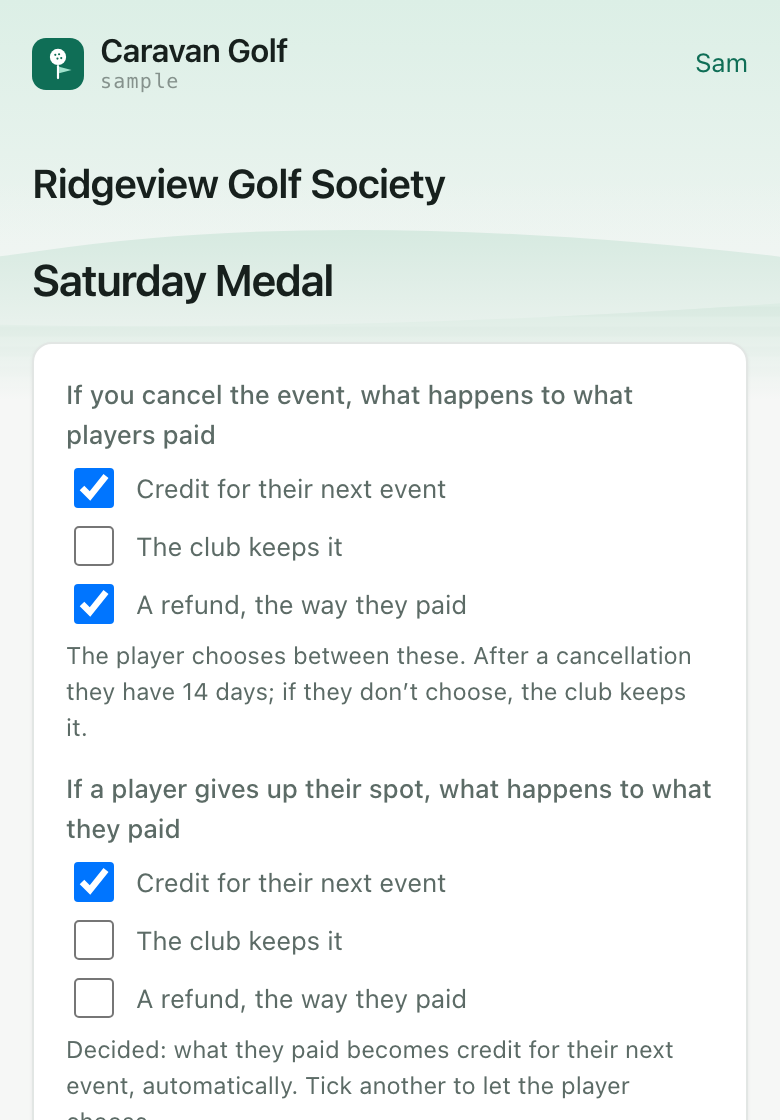
What it is. For each event, the organizer chooses what a player may do with what they paid, separately for a canceled event and for giving up a spot:
- Credit for their next event: it goes on their balance with the club.
- The club keeps it.
- A refund, the way they paid: a card refund through Stripe, or the organizer sends it back by hand.
How. Check the options in the event's payment settings.
Gotchas.
- Nothing checked means no refunds or credits: the club keeps what was paid.
- One option checked is the club's decision, applied automatically.
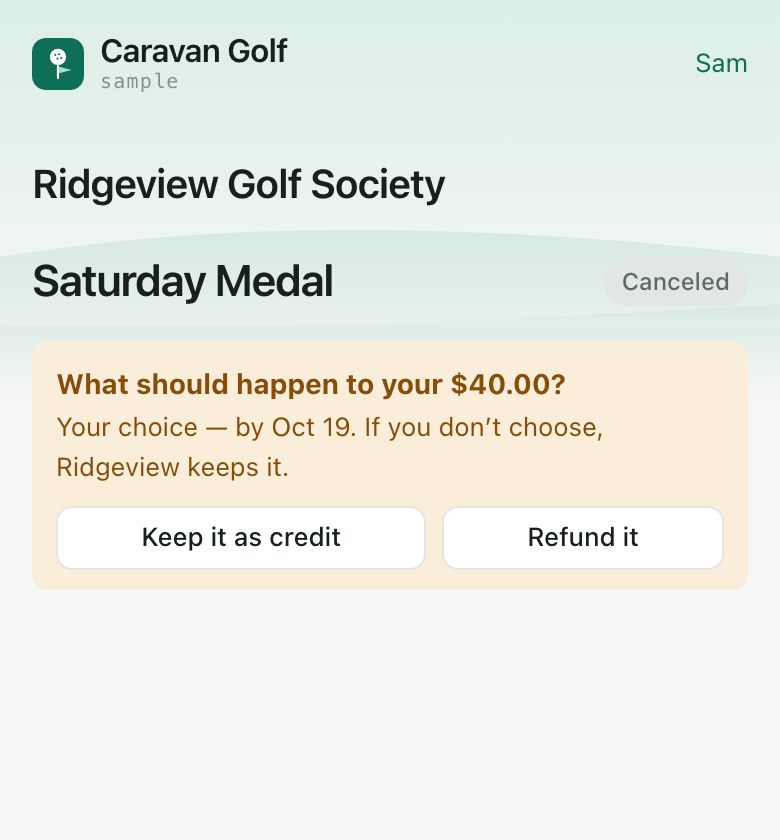
- Two or more and the player chooses. After a cancellation they have 14 days; if they don't choose, the club keeps it.
- A card refund returns the event's price. Stripe keeps its fee, and a gift to Caravan Golf is not refunded.
- Players see these terms before they pay.
Canceling an event
How. On the event, choose Cancel the event. Signups stop immediately.
Gotchas.
- Money paid from a balance goes straight back to the balance.
- Everyone who paid is notified, by push and email, and asked to choose if the event offers a choice.
- Direct refunds are yours to send. Mark each one Refund sent when you have.
Settling up when someone leaves
Players who paid and are no longer on the event are listed under "Left, with money to settle". Each chooses from what the event offers. A card refund goes back through Stripe; a direct one is yours to send, then mark Refund sent.
Events of several rounds
What it is. An event is the people and the money: the roster, the fee, the payments. A round is one day on a course, with its own date, course, holes, scores and result. Adding a round makes a multi-round event, and the leaderboard runs across all of them.
Which holes. Each round has its own: one round can be the front nine, another the back nine, and the finale all eighteen. Choose them on the round's line in the Rounds card, or on the round's own page. On a single-round event, the holes are chosen in the Rounds card too.
Gotchas.
- Everyone with a spot plays every round unless they sit one out. Sitting out is for that round only, and is not refunded.
- Course setup and scoring live on the rounds; the roster and the money stay on the event.
Pairings and tee times
What it is. Optional for each event, or each round of a multi-round event. Organizers and above put the players into groups and give each group a tee time. Players see their group and tee time only once you release them, and are told then.
How.
- On the event, press Make pairings for this event.
- Under Settings, choose how the field starts (one tee, the 1st and 10th tees together, or a shotgun), the first tee time and the minutes between tee times.
- Press Build tee sheet and choose a pairing style, Quicker play or Social play, then press Build tee sheet again. Caravan Golf builds the groups and tee times with its own method: foursomes, with threesomes where the numbers need them. The event remembers the style, and every rebuild uses it until you choose the other.
- Adjust anything you like. Move a player with the menu beside their name, or drag a group to another tee time (on a phone, use its arrows); the groups in between move up or down a slot.
- Press Release to players. After any later change, press Release changes: only the players whose group or tee time changed are told.
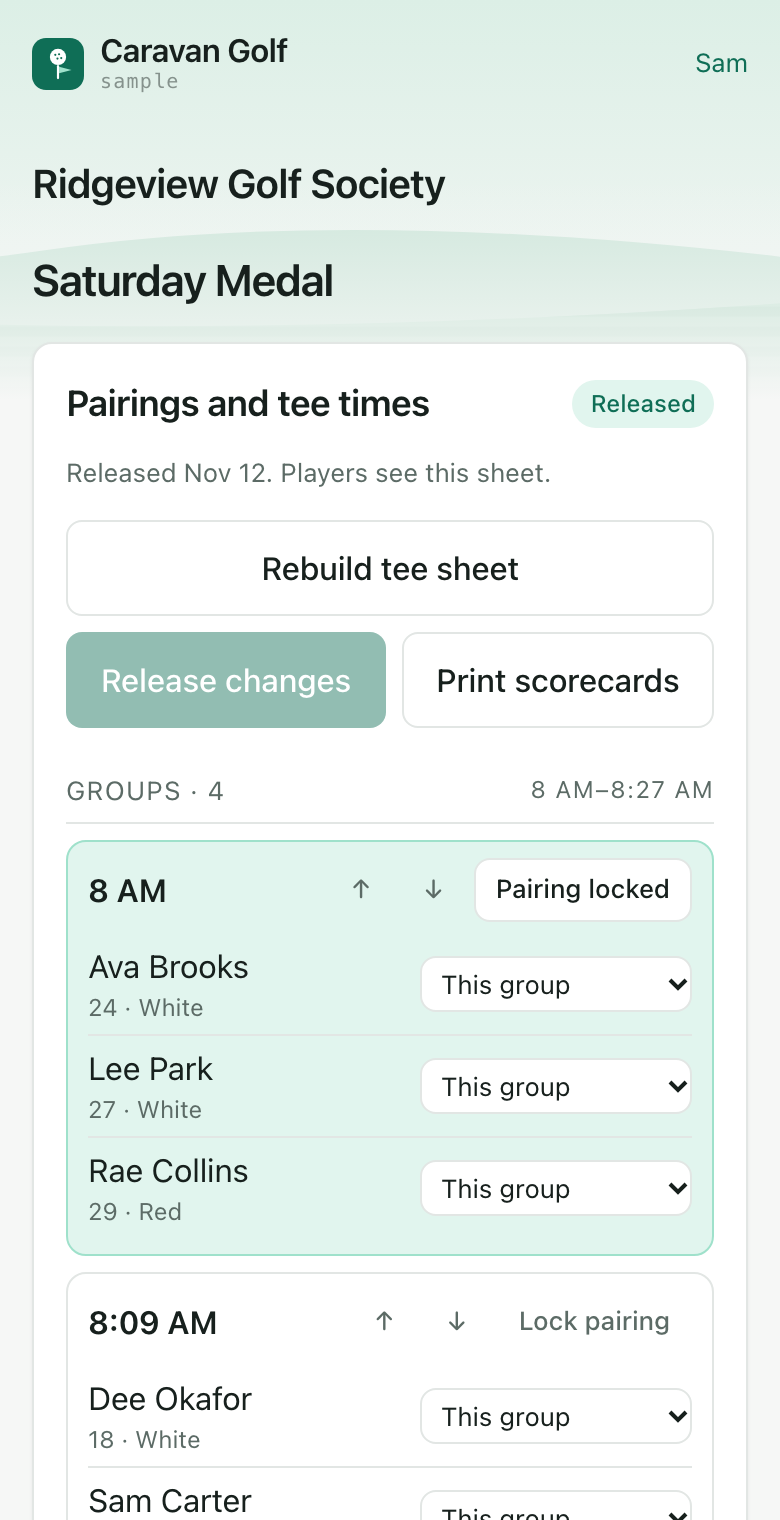
Rebuilding. Players added after the sheet was built aren't in a group yet: the sheet says so, and Rebuild tee sheet becomes the main button. Rebuild tee sheet builds the groups again from the current roster. Locked pairings stay together (see below). The rebuild asks for the pairing style again (it starts on the one you used last) and lists the locked pairings, all checked to keep their tee times; uncheck any that may move. Then press Assign tee times automatically.
When a player drops out. The rest of their group stays together. The group shows who left and a proposed replacement. Pick one, or leave it.
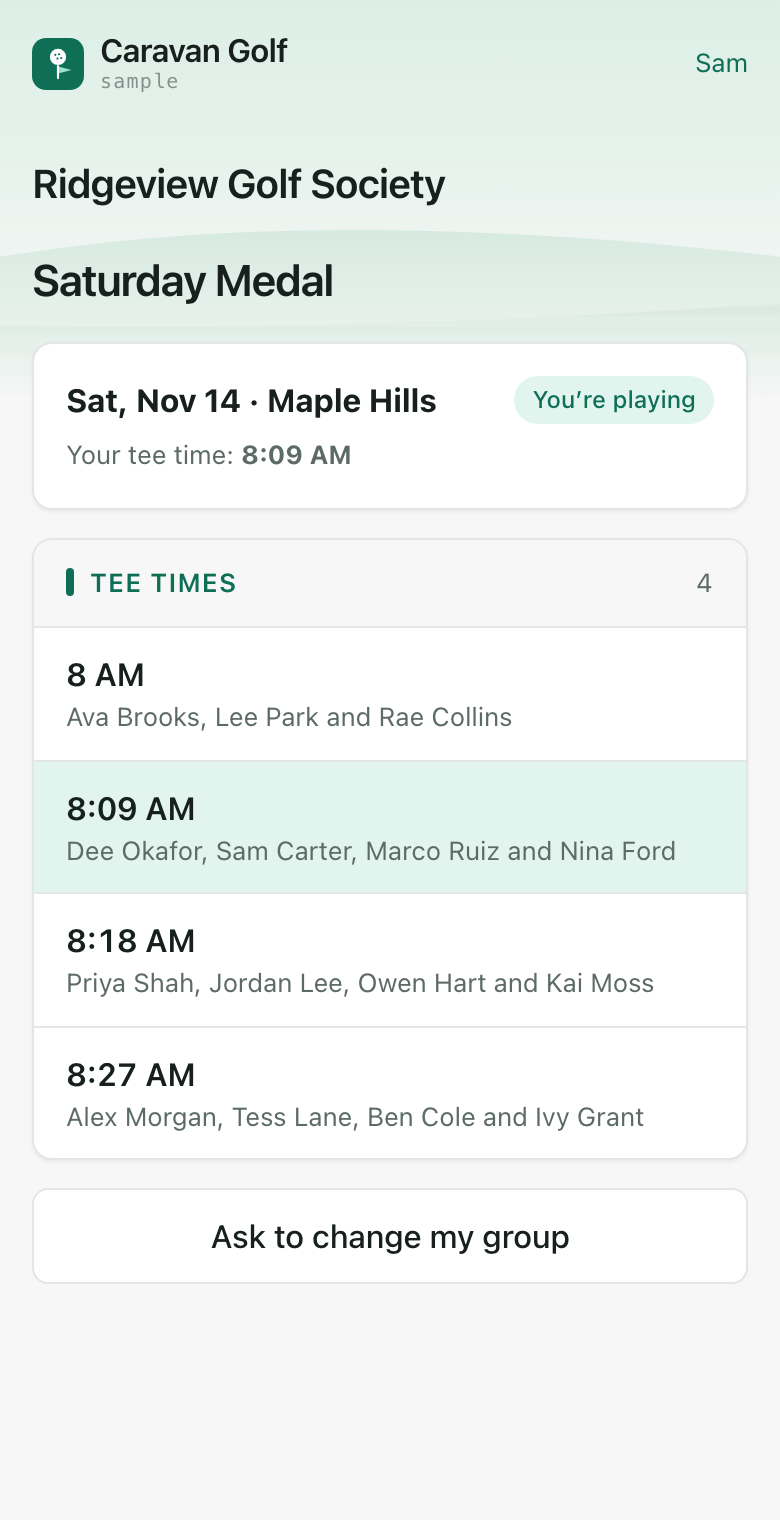
Players' requests. A player in an unlocked pairing can ask to move to another group, suggest the players they'd like to play with, or say they're happy anywhere. Rebuilding keeps suggested groups together where it can. Approve a request, or decide otherwise; the player is told either way.
Players with no Handicap Index. Under Settings, choose the course handicap they play off: scratch unless you pick another. It's used for both the groups and the scoring, so the two agree.
Locked pairings
A locked pairing is a group whose players you've decided: they stay together however often the tee sheet is rebuilt, imported or rearranged. Locking a pairing doesn't fix its tee time; that's chosen when you rebuild.
- Lock a pairing: press Lock pairing on the group. It turns green and the button reads Pairing locked.
- Unlock it: press Pairing locked.
- Move it to another tee time: drag it, or use its arrows. Locking keeps the players together, not the tee time.
- Change who's in it: use the menu beside a player's name. The pairing stays locked.
- Space left in a locked pairing (a twosome, say) is filled when you rebuild the tee sheet. Rebuilding never splits a locked pairing.
- Players can't ask to leave a locked pairing. Only an organizer can change it.
Working on the tee sheet in Excel
You can take the tee sheet out to Excel (or Google Sheets, or Numbers), rearrange it there, and bring it back. The same file goes both ways.
Where to do each step.
- Download: anywhere. In a web browser, Download for Excel saves the file. In the iPhone and Android apps, Share for Excel opens your phone's share sheet: email it to yourself, save it to Files or Drive, or AirDrop it to a computer.
- Edit and save: on a computer. Phone spreadsheet apps can open the file but don't save it back in the right format.
- Import: anywhere: a computer, a phone's browser, or the iPhone and Android apps.
1. Download it. Open the event and, under Pairings and tee times, press Download for Excel (in the apps, Share for Excel, and send it to your computer). The file is called the event's name tee sheet.csv. Open it in Excel.
2. What's in it. One row per player:
| Column | What it means |
|---|---|
| Group | Which group the player is in: 1, 2, 3… Groups go out in this order. Blank means not in a group. |
| Tee time | When the group starts. For reading only: tee times are worked out again from your settings when you import. |
| Player | The player's name, as it is in the app. |
| Tees | The tees they play from, such as White or Blue. |
| Course handicap | For reading only: worked out from the player's index and tees. |
| Pairing locked | Yes on every row of a locked pairing. |
| Group mate 1, 2, 3 | On a locked row, the other players in that locked pairing. |
3. Make your changes.
- Move a player: change their Group number.
- Start a new group: give its players a number no other group has.
- Change the order of the groups: renumber them. Group 1 goes out first.
- Leave someone out of the groups: clear their Group. They'll show under Not in a group yet.
- Change a player's tees: type the tee name exactly as the app shows it, such as Blue.
- Sort, filter or rearrange rows however you like. Rows are matched by name, not by position.
4. Look after the locked pairings. This is what keeps them together, even if their rows end up apart:
- Every player in a locked pairing has Yes under Pairing locked, and the other players in that group under Group mate 1, 2, 3.
- Keep a locked pairing as it is: don't touch its Pairing locked or Group mate cells.
- Move a locked pairing to another tee time: change the Group number on all of its rows. If its rows have different numbers, the group stays together under the lowest one.
- Lock a new pairing: give its players the same Group number. On each of their rows, type Yes under Pairing locked and the other players' names under Group mate.
- Add a player to a locked pairing: give them the group's number, Yes under Pairing locked, and the group's players as their group mates. A group can't have more than four players.
- Take a player out of a locked pairing: clear their Pairing locked and Group mate cells, and remove their name from the Group mate cells of the others. Anyone still named as a group mate is kept in the group.
- Unlock a pairing: clear Pairing locked and the Group mate cells on all of its rows.
5. Save it as CSV. On the computer, in Excel, choose File → Save As and pick CSV UTF-8 (Comma delimited) (.csv). Keep the column headings as they are; their order doesn't matter, and any extra columns you add are ignored.
6. Import it. On the event, on a computer or a phone, press Import from a file and choose the file. Before anything changes, the app shows you:
- how many players, groups and locked pairings the file has, and how many players move to different tees;
- notes worth knowing, such as a locked pairing whose rows had different group numbers.
Press Replace to use it, or Cancel to change nothing. Replace takes over the whole tee sheet: groups in the file's order, tee times from your settings.
7. Release it. Players don't see the new sheet until you press Release changes.
If the import stops. Nothing is changed, and the app lists what to fix in the spreadsheet:
- a name that isn't on the roster (check the spelling; capitals and extra spaces don't matter);
- a player who appears twice;
- a group with more than four players, or more than four locked together;
- a group number that isn't a number;
- tees this course doesn't have.
Gotchas.
- The file can't add players to the event. Add them to the roster in the app first, then download a fresh file.
- Two players with the same name can't be told apart in a file. Make their names different in the app first.
- Requests from players are kept when you import; answer them as usual.
Printed scorecards
Once the tee sheet has groups, you can print a scorecard for each group to hand out at the first tee.
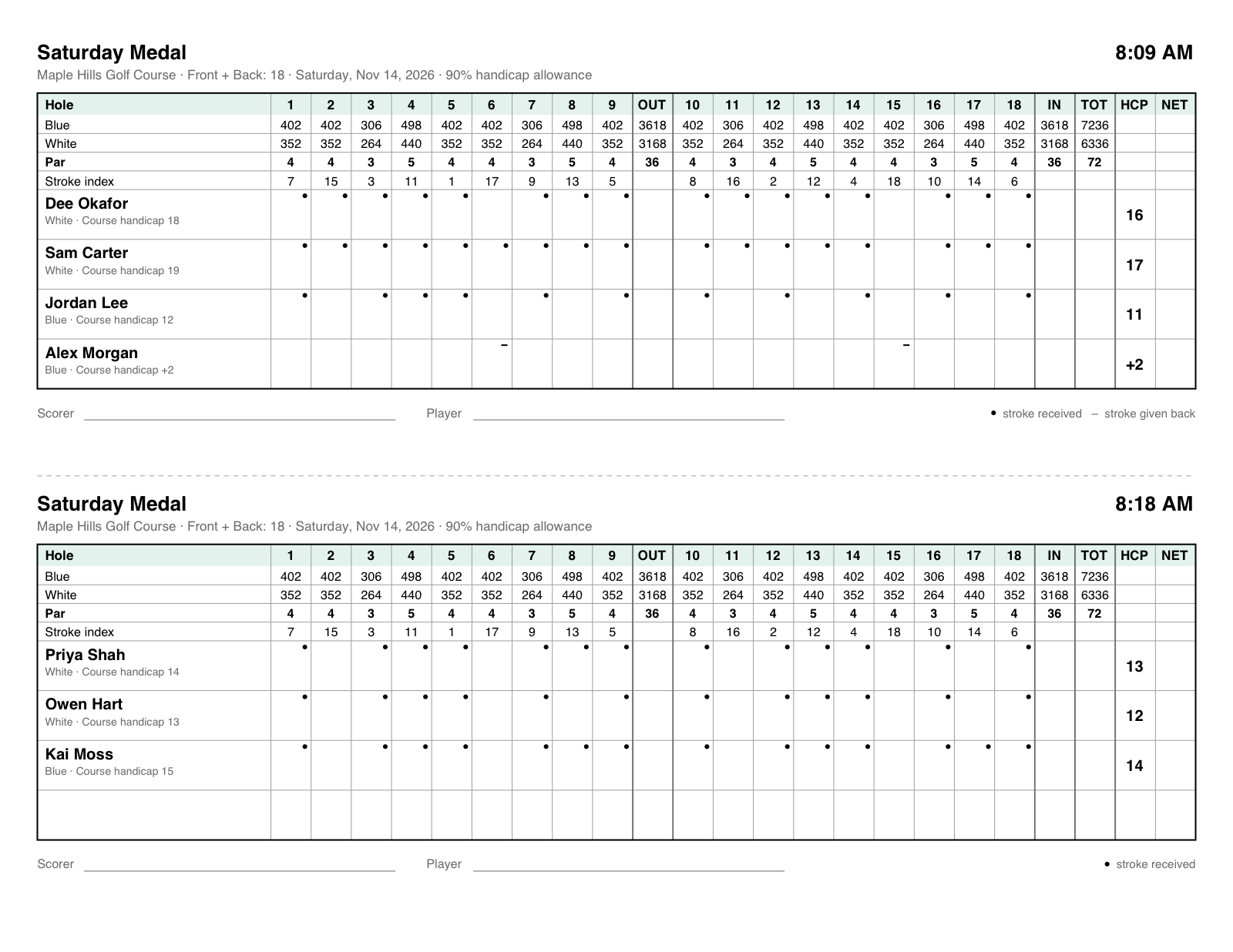
What's on a card.
- The event, the round, the course and which holes, the date, and the group's tee time (or starting hole, for a shotgun).
- Every hole's number, its yardage from the tees the group plays, its par and its stroke index. When men and women on a card have a different par or stroke index on any hole, both are shown.
- Each player's name, tees and course handicap, and their playing handicap (with the event's handicap allowance applied) under HCP.
- A dot in the corner of each hole where the player receives a stroke, worked out exactly as the app scores it. A plus handicap's strokes given back are marked with a dash.
- Empty boxes for the scores, totals for the front and back nines, and lines for the scorer and the player to sign.
- Four player rows on every card. A threesome or twosome gets blank rows, to write in a substitute or a late addition.
How. On the event, under Pairings and tee times, press Print scorecards. Cards are two to a page, on Letter paper, landscape; cut along the dotted line.
- Print opens the cards in your browser, ready to print. On a phone, use the share button there to print to a nearby printer.
- Share (or Download, where a browser can't share files) sends the cards anywhere: email them to the pro shop, save them to Drive, or AirDrop them to a computer by a printer.
- In the iPhone and Android apps, Print or share opens your phone's share sheet. On an iPhone, choose Print. On Android, choose a printing app, or send the cards on to be printed elsewhere.
Gotchas.
- Cards follow the tee sheet as it is when you press the button, released or not. If you change the groups afterwards, print them again.
- Players who aren't in a group don't get a card. The app tells you how many before you print.
- Yardages appear only for tees the course has yardages for.
Sharing the event
A message carrying only the link stays right for the life of the event: safe to pin. A message quoting the roster or the count is a snapshot. Post it and let it scroll.
Paying for events
Paying for an event
How. After you accept a spot, the event page offers the ways this event takes payment:
- Pay directly (Zelle, Venmo and so on). No fee. You pay the collector yourself, then press I've sent it.
- Pay by card or bank transfer, if the club takes cards. Stripe's processing fee is added on top, so the club receives the full price.
- From your balance, if you have money with the club. See Paying from your balance.
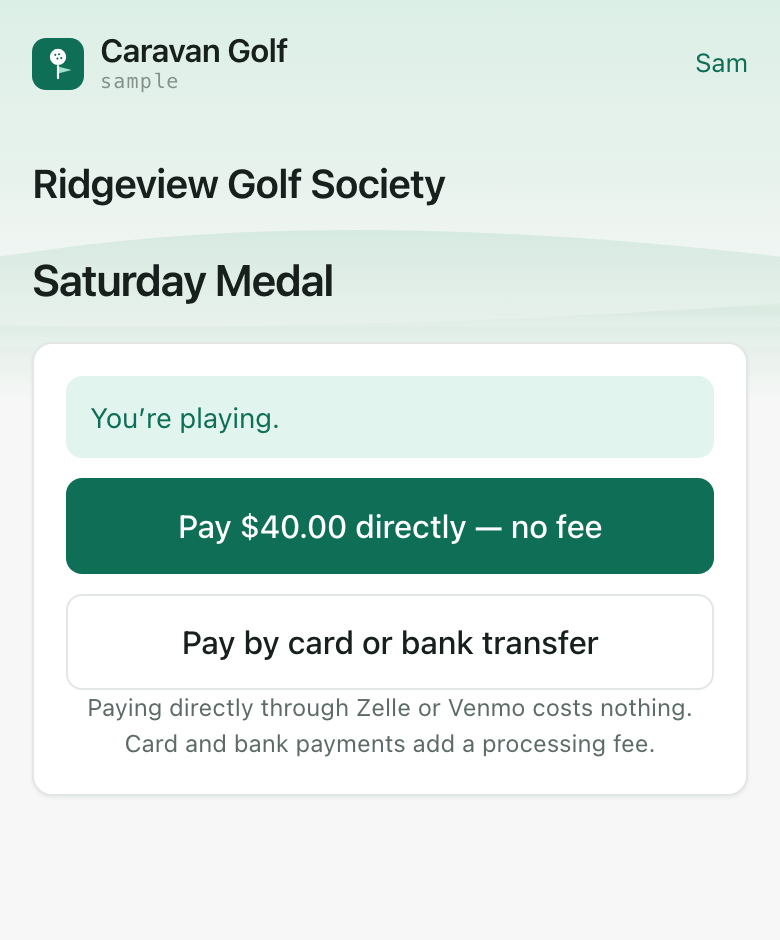
Paying by Zelle. Zelle lives inside each bank's app, so nothing can open it with the amount filled in. Press Copy amount and Copy Zelle handle, then in your bank's app go to Zelle and send it. Paying in person? Ask the collector to show their Zelle code (on their profile) and scan it in your bank's app.
Gotchas.
- A direct payment shows as "sent" until the collector confirms it arrived.
- If part of a spot is already paid, every way of paying asks only for what is left.
- The terms for a cancellation or dropping out are shown before you pay.
How I get paid
What it is. Your own Zelle, Venmo, Cash App and PayPal, the same in every club: for event fees you collect, side games you win, and refunds. It's yours, not a club's.
How. Tap your name or Me. How I get paid is on your profile, below your details. Fill in the ones you use and press Save, which saves the whole profile.
My Zelle code. Your bank's Zelle gives you a QR code (often under My code or Receive). Take a screenshot of it, press Add my Zelle code, choose the screenshot, and press Save. Your profile then shows that exact code, and someone paying you in person scans it in their bank's app (Zelle, then Scan QR code); they type the amount. Only the code is kept, not the picture, and only a Zelle code is accepted.
Gotchas.
- What players are told about paying for an event (a reference, where to leave cash) goes on the event itself, under Anything else players should know.
- Card payments for a club's events are separate: Payments, then Card payments (organizers).
Paying by card or bank
What it is. Stripe's own secure payment form. Card and bank details go straight to Stripe; Caravan Golf never sees them. Stripe may ask you to sign in to, or create, a Stripe login.
Gotchas.
- A card is instant with a higher fee. A bank transfer has a lower fee and takes a few days to clear, but your spot is confirmed straight away.
- The money goes to the club's collector's own Stripe account, never to Caravan Golf.
A gift to Caravan Golf
What it is. An optional tip that keeps Caravan Golf free and ad-free. It starts at nothing, buys nothing, and goes to Caravan Golf, not the club.
Where.
- The Gift tab (♥) in the bar along the bottom, any time.
- Enjoying Caravan Golf? on your home screen, on About Caravan Golf, and when a round is finished. Not now puts it away for a month.
- At checkout, when you pay for an event by card, or after you take a spot you paid for another way.
- Organizers can also give from their club's page and from any event they run.
Gotchas.
- We email a thank-you once your gift goes through, if your account has an email address.
- Gifts are non-refundable, even if the event is canceled.
- Gifts are taken in the US only.
- In the iPhone app, Give a gift opens our website to give there. The Android app doesn't take gifts; use the website.
Setting up card payments
What it is. One person in the club collects card payments for it, on their own Stripe account, the way somebody collects Zelle and cash. An organizer who sets up card payments collects the card payments for the events they run.
How. On Payments, open Card payments and follow Stripe's steps: your address, date of birth, the last four of your SSN and your bank. Stripe asks you to sign in or create a Stripe login. The CGO chooses the club's card payments collector in Club settings.
Gotchas.
- Caravan Golf takes no fee and never holds the money.
- Card payments appear for an event only when someone who collects for it has finished Stripe's setup.
Your balance
Money on account
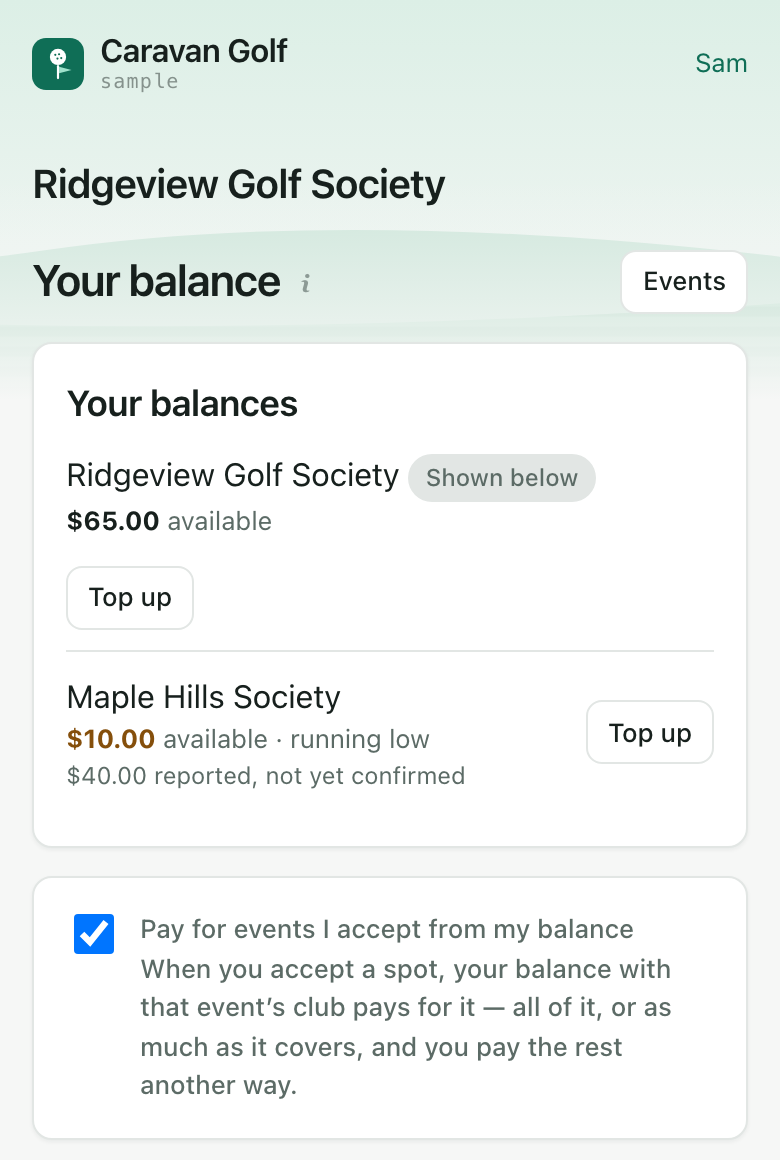
What it is. Money you have with a club, ready for its events. Each club holds its own balance. In several clubs, My balances lists each one with a Top up button.
Gotchas.
- A balance is with a club, and pays only that club's events.
- Money on account is not refunded through the app. Speak to an organizer.
Paying from your balance
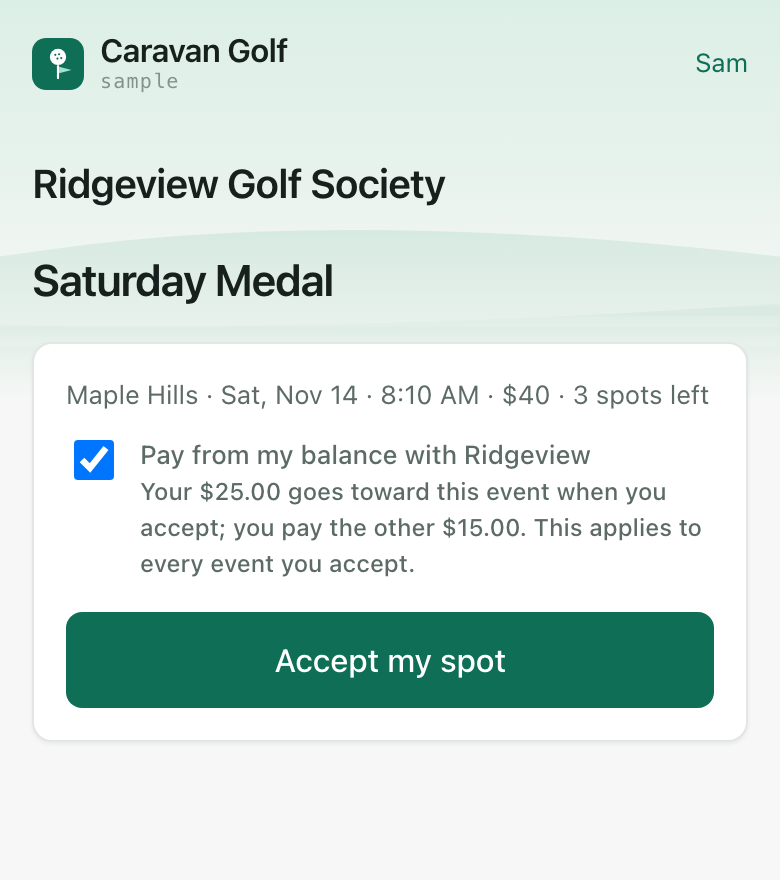
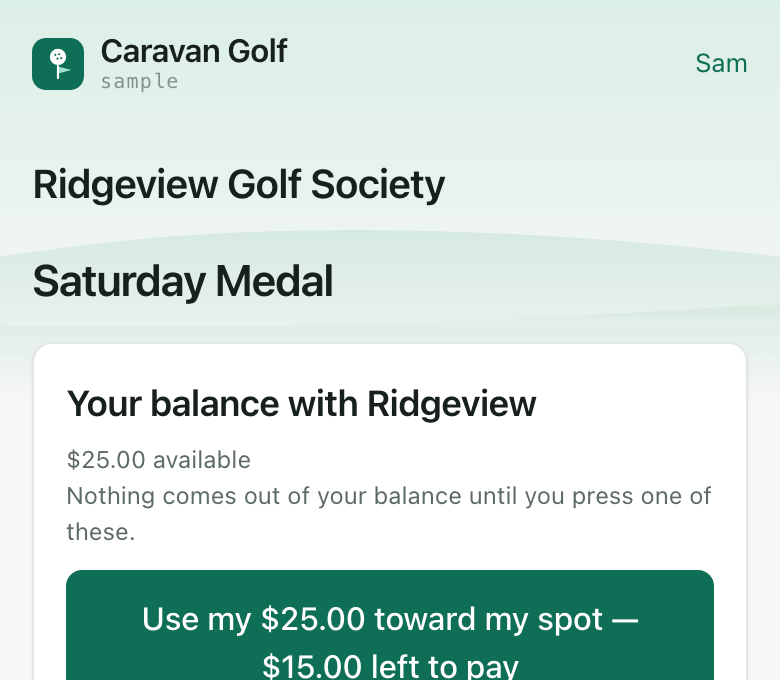
What it is. A standing permission, on by default: Pay for events I accept from my balance. When you accept a spot (sign up, take over a spot made for you, or move up from the waitlist), your balance with that club pays for it straight away. It pays all of it, or as much as it covers.
How. Switch it on or off on your balance page, or with the box next to the sign-up button. It applies to every event you accept.
Gotchas.
- A spot an organizer adds you to is not paid automatically, because you did not accept it.
- With the permission off, the event page still offers Use $40 from my balance for my spot.
Paying part from your balance
If your balance doesn't cover a spot, it pays what it can, and the rest is paid another way. Card, Zelle and I've sent it all ask only for what is left. The organizer sees "$25 of $40 paid" until the rest arrives.
Using new money on events you owe
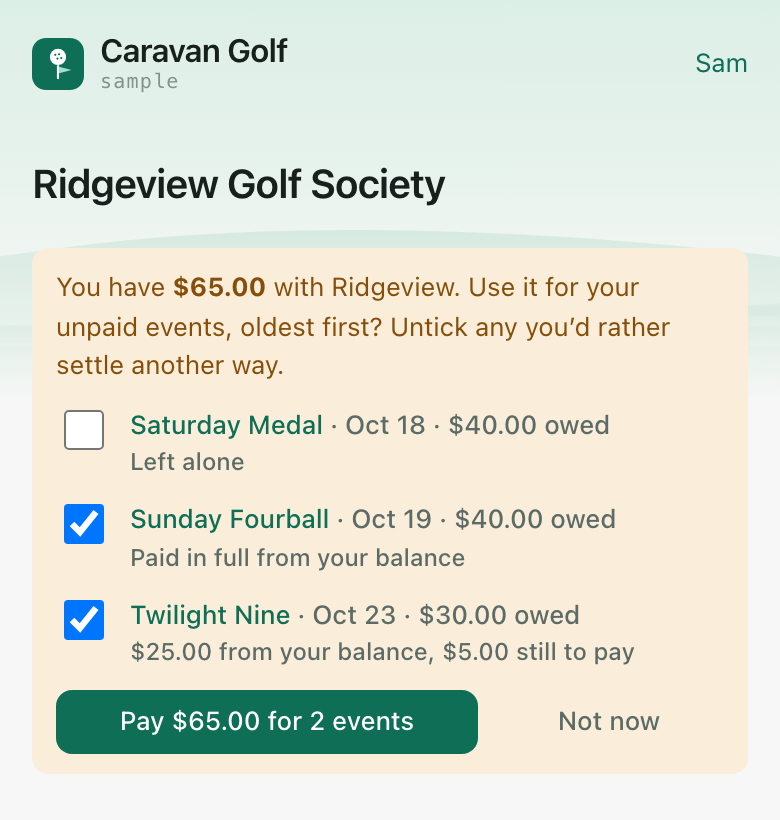
What it is. When money lands on your balance and you have events you accepted but still owe, the app asks: "You have $65 with Ridgeview. Use it for your unpaid events, oldest first?" You also get a notification saying what you have and what you owe.
How. Uncheck any event you would rather settle another way, for example one with side bets of its own, then press Pay. Not now puts the question away until you next open the app.
Gotchas.
- Nothing is paid until you press Pay.
- "Oldest first" is the earliest event date, then the event you accepted first.
- You get at most one notification a day per club about it.
Topping up
How. On your balance page, press Top up on the club, or choose it in the list. Then either:
- Add money by card, if the club takes cards. It is credited as soon as Stripe confirms it.
- Report a payment: send money the usual way first, then say who you sent it to, what it is for, and who else it covers.
Gotcha. A reported payment counts for nothing until an organizer confirms it arrived.
Confirming payments (organizers)
On Payments → Advance deposits, each reported payment waits for you. Confirm received, Different amount, or Not received. Confirming turns it into credit the player can spend.
Recording money or a correction (CGO)
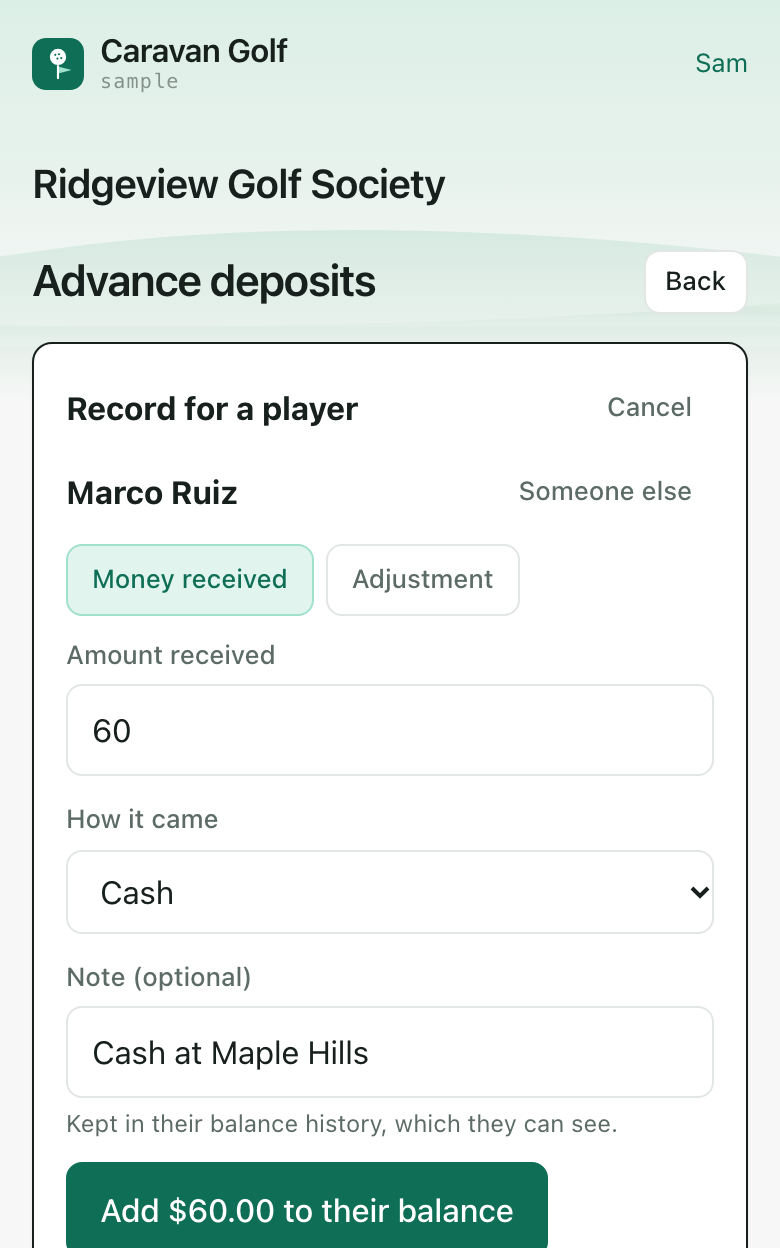
What it is. The CGO can change a player's balance directly, on Payments → Advance deposits → Record for a player (or Adjust next to a balance).
How.
- Money received: the amount and how it came (cash, Zelle, Venmo, PayPal, Cash App, check), with an optional note.
- Adjustment: an amount, minus to take money off, and a short reason, which is required.
Gotchas.
- Each entry shows in the player's balance history with its method or reason, and is logged with who made it.
- A balance can't go below $0.
Notices about your money
You get a notification and an email whenever your money moves: a payment confirmed or marked as not received, your balance used for an event, credit returned to your balance, or an adjustment by your club's CGO. Each one links to your balance. Other news stays in the app's notifications.
All your transactions
Press All transactions under Me, or on your balance screen, to see every payment in one list, newest first, across all your clubs: money added to a balance, events paid from it or paid directly to a collector, refunds, adjustments, and your gifts to Caravan Golf. If you belong to more than one club, you can filter the list by club.
Each line that belongs to a club shows your balance with that club after that line. A payment made directly to a collector appears in the list but leaves your balance unchanged. Payments still awaiting confirmation are marked, and don't count until they're confirmed.
Press Copy to copy the list, or the filtered part of it, and paste it into a spreadsheet or anywhere else.
The club's financial journal
The journal, under Payments, lists all the money the club knows about, whether or not it went through a balance, with who collected it. Filter it by player, event, collector or dates, and press Copy to take the list with you. Each line shows that player's running balance with the club.
The CGO and the platform admin can always see the journal. Organizers can too, unless the CGO or admin turns off Organizers can see it in Club settings. The platform admin also has All clubs’ journal on Home, which lists every club's money with a filter by club.
Low-balance reminders
When a member's balance is at or below the club's low-funds line, they see a reminder and can top up. The CGO sets the line in Club settings, or leaves it empty for none.
Scoring
The tee-time reminder
Five minutes before your tee time, Caravan Golf sends a notification: "Time to tee off". Tap it and the scoring screen opens for that event.
Gotchas.
- Your tee time is your group's on a released tee sheet. With a shotgun start, or no tee sheet yet, it's the event's start time.
- It's sent once, to everyone with a spot and an account, and not to anyone who has already started scoring.
- It goes by the event's time zone, set when the event was created.
- Notifications have to be switched on for your phone or browser.
Start scoring
What it is. From five minutes before your tee time, a Your round card sits at the top of your home screen and the event's page, with one button: Start scoring. Once you've entered a score it says Keep scoring.
Gotchas.
- If someone else in your group is keeping your card, the card offers Open the leaderboard first, with Keep score myself below it.
- Not playing? Organizers and club members see the same card with Open the leaderboard from the event's start time.
- If the holes aren't chosen yet, players are told to wait, and organizers can choose them right in the card.
- Share the scoring link sends the scoring page to someone in your group by text or chat. Only people playing can keep score from it. Anyone else who opens it gets the leaderboard, and a player who isn't signed in on that phone is asked to sign in first.
- The card is checked when you open the app or come back to it, so your phone does no extra work.
Entering scores
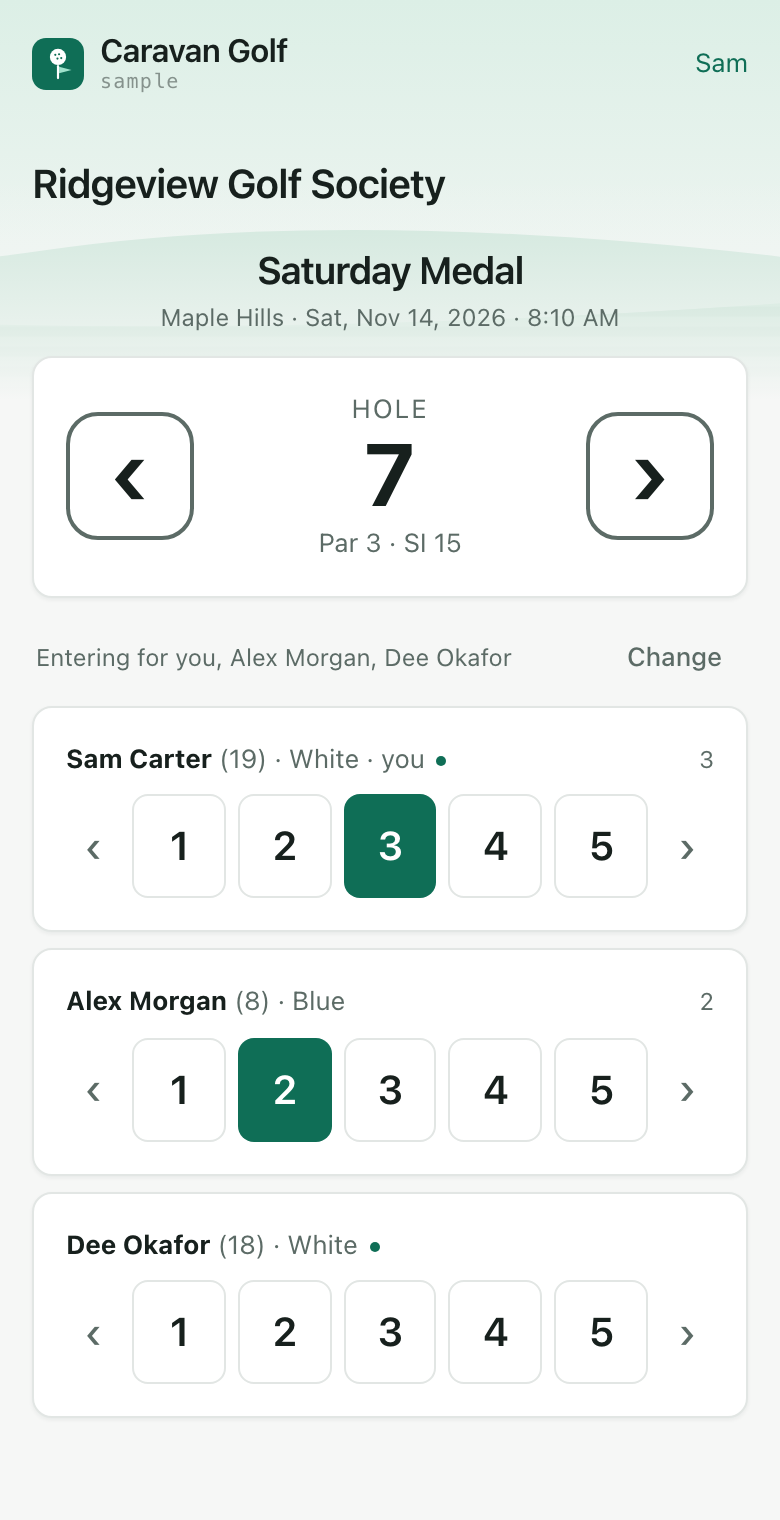
How. On the event (or the round), press Record scores. Pick who you are recording for: yourself, or the whole group if you are keeping the card. Enter one hole at a time. To move between holes, swipe the hole left or right, or use the ‹ and › arrows beside the hole number.
Finishing. On the last hole, the › arrow becomes Done. Press it when your card is finished. If anyone you're scoring for has a hole with no score (someone who picked up, say), the app lists them and asks before finishing. Done sends any scores still on your phone, then shows the result. You can still correct a score afterwards. See the result, under the scores, shows the result at any time without finishing.
Gotchas.
- Whoever tees off first can start. There is nothing to wait for.
- The score buttons show five numbers at a time. For a bigger or smaller score, swipe the row left or right, or use its small arrows. Tap a chosen number again to remove it.
- It works with no signal: scores are kept on your phone and sent when the signal comes back.
- Picking somebody takes them: nobody else can record for them until you let go by unchecking their name. Anyone keeping a card can take a player over if needed.
- Who you keep a card for has nothing to do with who is in which competition.
- A corrected score replaces the earlier one, which is kept in the history.
The dots on a card
Dots in the corner of a box are the strokes that player receives on that hole, by stroke index, from their playing handicap.
Following along
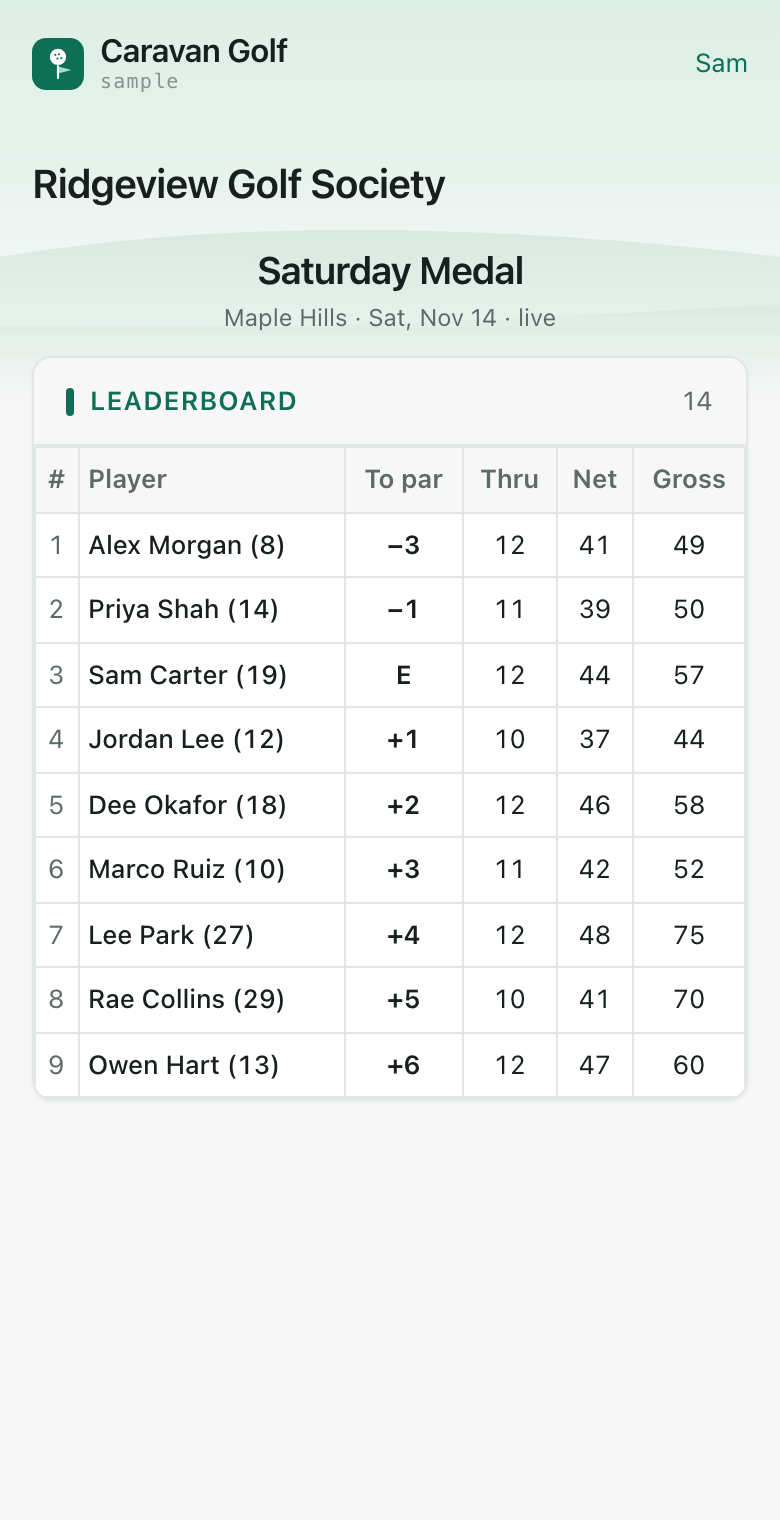
The leaderboard updates as the groups come in. Anyone can watch, with no account needed, in the iPhone or Android app or in a browser.
Closing a round and posting to GHIN
How. Nothing more to press. A round closes by itself the moment every card is in: every player has a score on every hole, or their scorer has pressed Done on the last hole. That way a player who picked up on a hole doesn't hold the round open. It also closes 90 minutes after the last score anybody entered, so a player who never records or stops halfway doesn't hold it open. Every event also closes the morning after its date, scored or not, and stops taking sign-ups. An organizer can close a round early with Close the round now. Once it's closed, the result is final and the upload sheet appears under it.
Correcting a score. On a closed round, an organizer presses Correct a score, changes the hole, then presses Done correcting. The round stays closed, and the result and the season standings update straight away.
Gotchas.
- Gross is what they shot. Adj is the adjusted gross, every hole capped at net double bogey, and is the score that gets posted.
- The upload file is the club's five-column layout: Player Name, GHIN Number, Tee Played, Total Gross, Adjusted Gross.
- If the CGO saved the club's GHIN posting page, every finished round offers it as a button. Treat that link like a password.
- Mark a round a competition and the scores are posted as tournament scores.
Competitions
Starting a competition
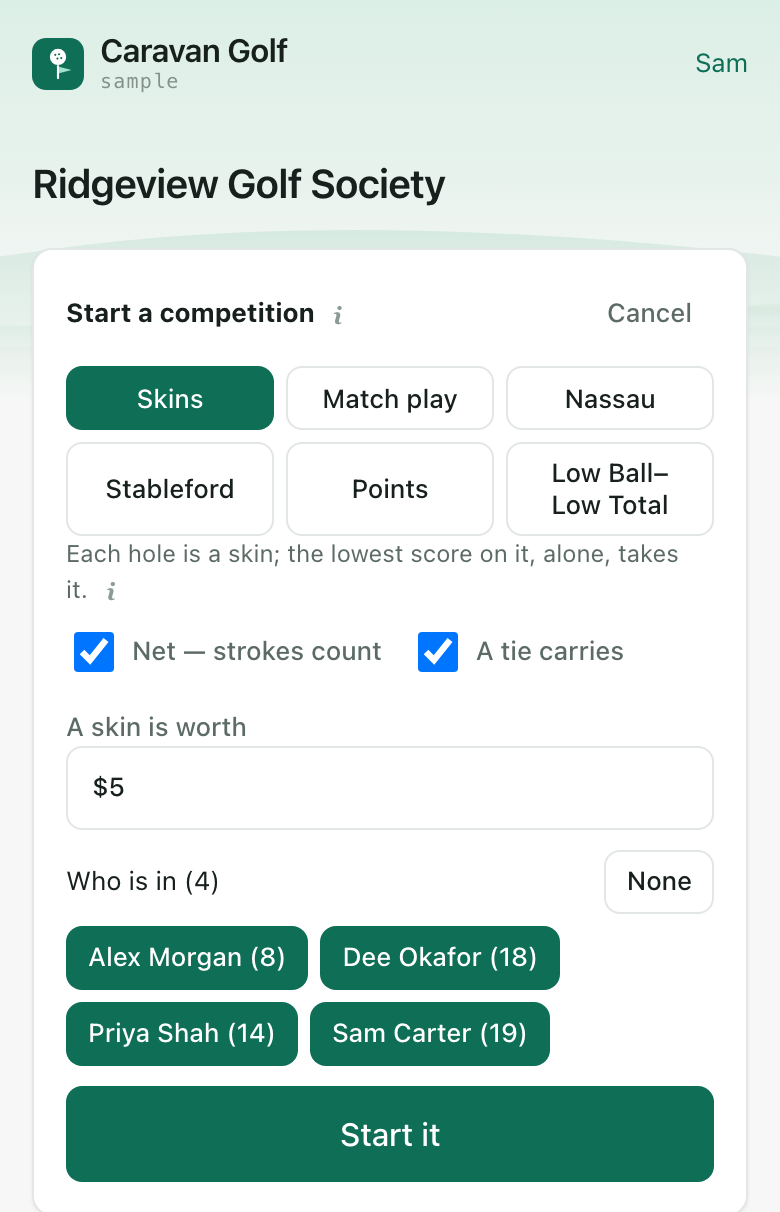
What it is. A side game inside a round: skins, a match, a Nassau, Stableford, Points or Low Ball–Low Total. Nobody has to accept, and anybody put in one can take themselves out of it.
How. On the round, choose Start a competition. Pick the format, who is in, net or gross, where it counts from, and what it's worth. For two teams playing several competitions at once, use Start team competitions.
Gotchas.
- Only players with a spot can be put in; waitlisted players are not offered.
- Everybody put in gets a notification.
- Stakes are optional: leave the amount empty and it's played for bragging rights.
Net or gross
Net means strokes count: each player receives strokes from their playing handicap, on the hardest holes first.
Gotchas.
- In skins and Stableford each player plays off their own course handicap.
- In a match, and Low Ball–Low Total, strokes are relative to the lowest handicap in it: that player plays off scratch and everybody else receives the difference.
Agreeing strokes
What it is. "Mike gives me 3." When the group agrees strokes out loud, enter them under Strokes given on the competition. They replace what the handicaps would give.
Gotchas.
- Leave a box empty for what the handicaps give. The faint number shows that.
- Strokes are counted over the holes being played, not a full card, and fall on the hardest holes first.
- Not available in team skins, where each team plays off its members' own handicaps.
Where it counts from
What it is. The whole round, or from a particular hole: "from this hole" for a competition agreed on the tee, or an earlier hole for one remembered later.
Gotcha. Counting holes already played is allowed, and everyone in the competition sees that it was agreed on one hole and backdated to another.
The whole field
Off: a side game between the people picked, and only they can see it. On: it becomes the club's own competition for the round. Everybody on the roster is in it, including anyone added later, and everyone playing can see it. Organizers only, and on by default when an organizer starts skins, Stableford or points. A match is between two sides, so it can't be for the whole field.
Taking someone out. Tap their name in Who is in to take them out; anyone added to the roster later is still in.
Changing who is in
How. On the competition, press Players, tap names in or out, and press Save the players. An organizer can change any competition they can see; whoever started a side game can change theirs.
Gotchas.
- A player who withdraws from the event leaves its side games, unless they've already entered a score. A side game left with one player is called off.
- A press is between the people in the competition it presses, so it has no Players.
Presses
What it is. A new bet on the rest of the round, started by whoever is behind. Press on a competition starts one with the same people, from the hole the group is on to the end, unless you choose other holes.
Automatic press
What it is. In skins, a press that starts by itself on the next hole when somebody is a set number of skins behind and cannot catch up in the holes left: two behind with one to play, not two behind with seven.
How. Check Press automatically when starting skins, and choose how many behind and how long the press runs.
Skins
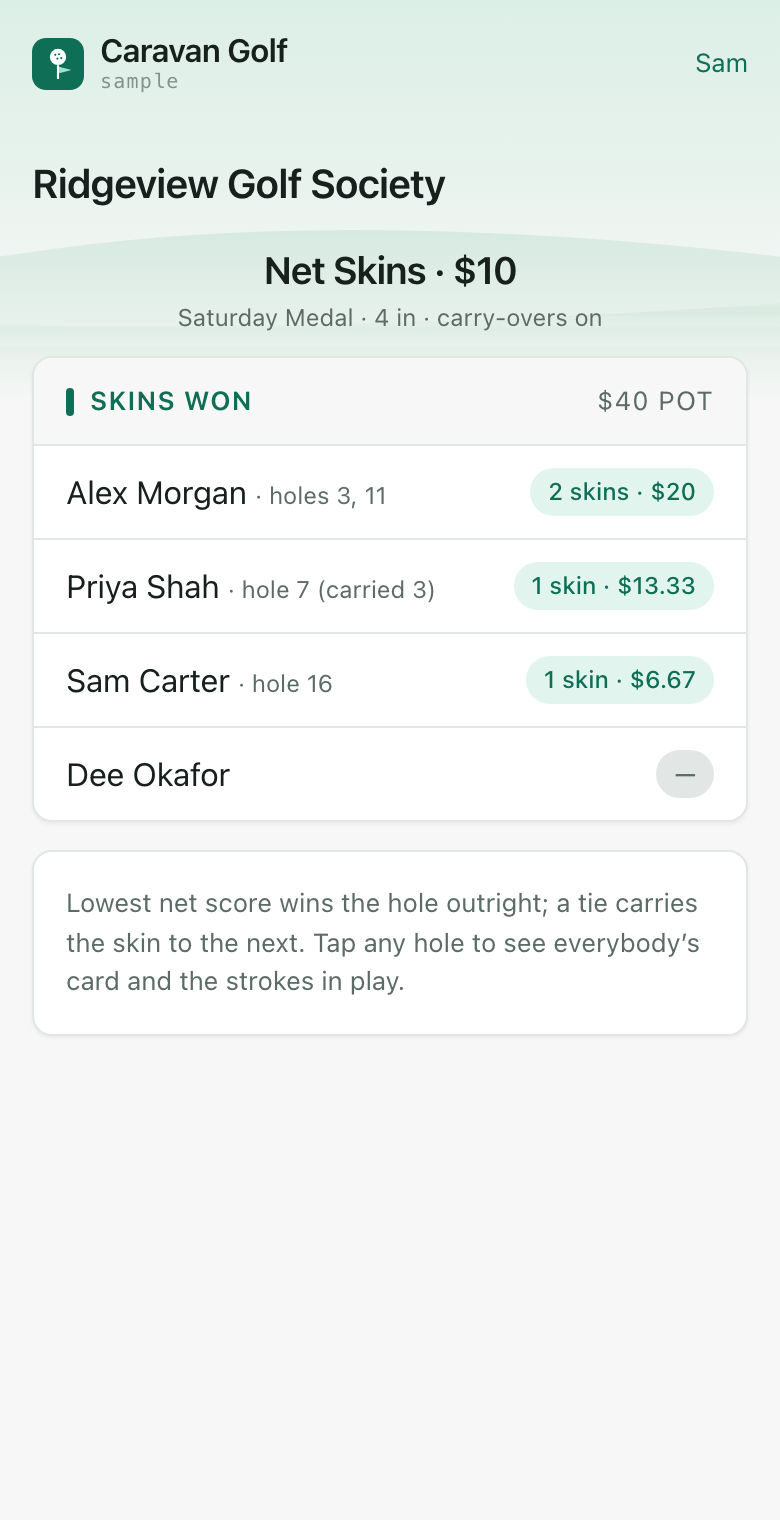
What it is. Each hole is a skin. The lowest score on the hole, alone, takes it.
How. Choose Skins, pick the players, net or gross, and what a skin is worth.
Gotchas.
- A hole is decided only when everyone in it has a score on it.
- See Carrying ties for what a tied hole does.
Carrying ties
On (the default): a tied hole carries, and the next hole is worth both. Off: a tied hole is void and nothing accumulates. This applies to the whole competition, not from a hole.
Match play
What it is. Hole by hole between two sides: one player each (singles), two each (four-ball, the better ball counts), or one against the better ball of two or three.
How. Choose Match play, pick the players, and with three or more put each on side A or B. A player on neither is a side of their own.
Gotchas.
- A match is between exactly two sides.
- The stake is for the whole match: winning 4 & 3 pays the same as winning on the last green.
Nassau
What it is. A match with three pots: the front nine, the back nine, and the eighteen, each its own match.
Gotchas.
- The stake is per pot, so three pots at $5 is $15 in play.
- The eighteen is not the two nines added up.
- A nine-hole round can't carry a Nassau.
Pots
Which parts of the round carry their own pot: the eighteen only for an ordinary match, or the front, the back and the eighteen for a Nassau.
Stableford
What it is. Points against par on each hole, after strokes in a net competition. Most points wins the pot, split on a tie.
Standard points: albatross 5, eagle 4, birdie 3, par 2, bogey 1, double bogey or worse 0. Modified (par 0, bogey −1, birdie 2, eagle 5) is one tap away, and every row can be edited.
Gotchas.
- A hole nobody has written down is not zero points: it is not finished.
- Anything worse than the last row scores the same as it.
Points (Nines)
What it is. Points on every hole by where you finished on it. Three players is the classic Nines, 5-3-1. Four is 7-5-3-1. The stake is per point, settled against level, so second place by two points is owed by first.
Gotchas. Everyone tied on a hole shares the places they cover. Two to eight players.
Low Ball–Low Total
What it is. Two sides, two points a hole: one for the side with the best single net ball, one for the side with the lowest combined total. Halved when equal. Optionally, a third point for the most birdies.
Gotchas.
- It is counted, not won hole by hole: a side that loses seven holes is behind on points and still alive.
- It can carry a pot on the front, the back and the eighteen, like a Nassau.
- Low total is only fair with the same number on each side.
Team competitions
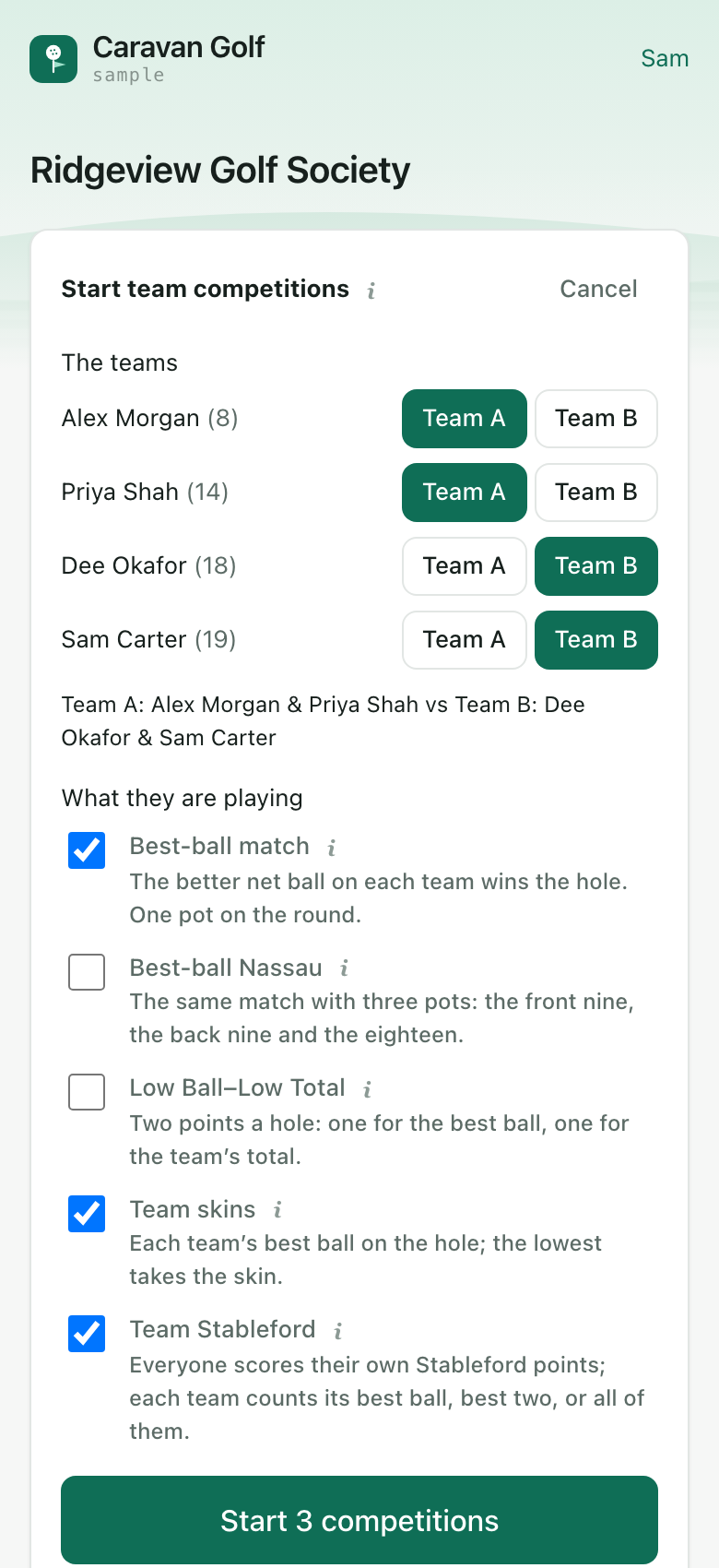
What it is. Two teams, several competitions at once. Pick the teams once, check every competition they are playing, and each starts as its own competition with its own stake.
How.
- On the round, choose Start team competitions.
- Put each player on Team A or Team B. Anyone you leave out is not in these competitions.
- Check the competitions: best-ball match, best-ball Nassau, Low Ball–Low Total, team skins and team Stableford. Set each one's stake.
- Choose net or gross and where they count from, then Start.
Gotchas.
- A Nassau is greyed out on a nine-hole round. Uneven teams are allowed; the form notes where they tilt a game, such as low total with a bigger team.
- Scrambles and alternate shot aren't offered, because the app scores each player's own ball.
- Anybody in a competition can take themselves out of it later.
Best-ball match and Nassau
What it is. The better net ball on each team wins the hole: a four-ball match. As a Nassau it carries three pots: front, back and eighteen.
Gotchas.
- Strokes are relative to the lowest handicap in the match.
- The Nassau stake is per pot.
Team skins
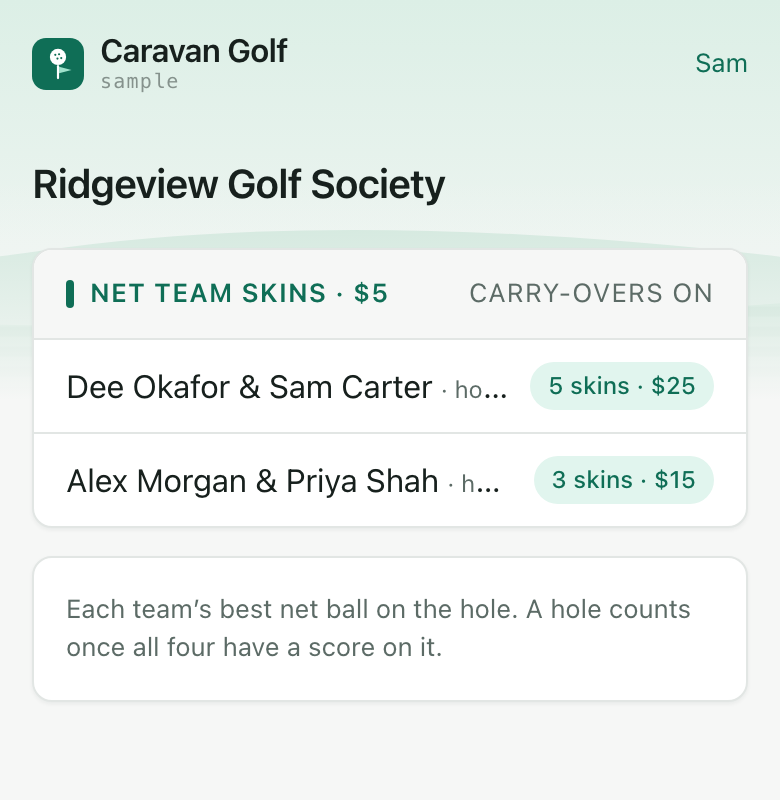
What it is. Skins between teams. On each hole, a team's score is its best ball, net in a net competition. The lowest team score takes the skin.
How. In Start team competitions, check Team skins, choose whether a tie carries (on by default), and what a skin is worth.
Gotchas.
- A hole is decided only when every member of both teams has a score on it, so a skin is never awarded before a partner has finished.
- Each player plays off their own course handicap. Strokes can't be agreed, because the team, not the player, is the one competing.
- The card shows one row per team: its best ball on each hole.
Team Stableford
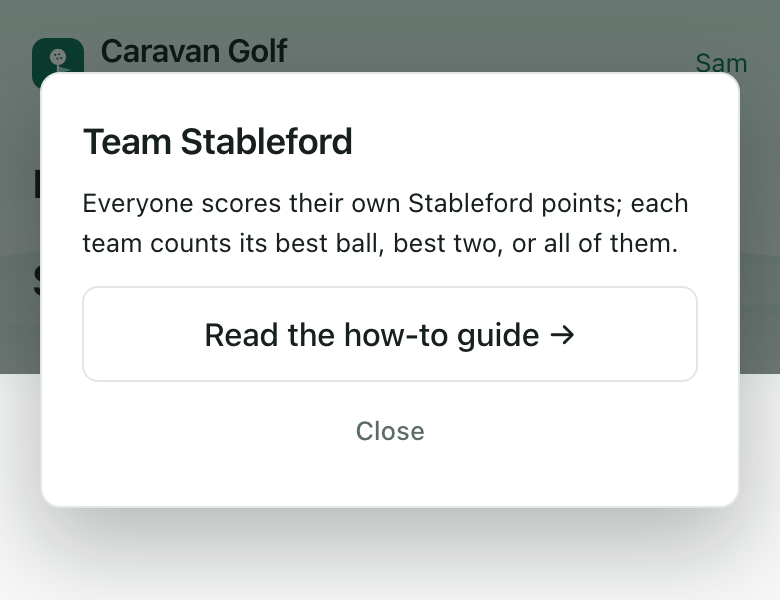
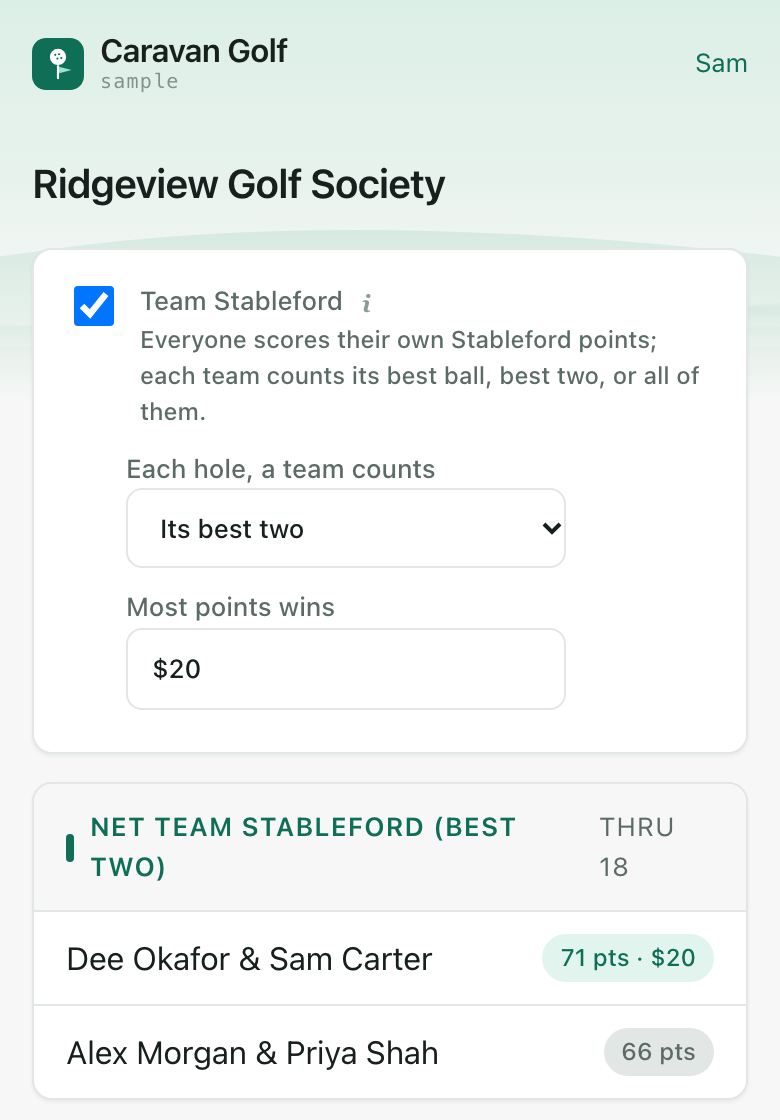
What it is. Everyone scores their own Stableford points on each hole, and each team counts its best ball, its best two, or every ball. The team with the most points wins the pot, split on a tie.
How. In Start team competitions, check Team Stableford, choose what each team counts on a hole, and what the winning team gets.
Gotchas.
- With uneven teams, every ball gives the bigger team more balls, and a team of one counts its only ball for best two. The form notes it; the choice is yours.
- A hole counts once every member of the team has a score on it.
- Points use the standard table (birdie 3, par 2, bogey 1). Individual points tables can be edited on the competition.
- The name says what it counts, for example "Net Team Stableford (best two)".
Settling up a competition
Each competition shows what everyone is up or down once it's finished, and the card shows every hole. Money changes hands between players directly; the app doesn't collect it.
Settle up
What it is. Under the competitions, once games with money on them are over, Settle up lists who pays whom, combined across every game you're in, in the fewest payments. On your own lines are the other player's Venmo, Cash App or PayPal with the amount filled in, or their Zelle to copy (and their Zelle code to scan, if they've added one).
How it's paid. Skins and Stableford (and their team versions) are paid one of two ways, chosen when the game starts or later under Change the terms:
- Everyone puts in equally: each player puts in an equal share of what was won, and the winners take what they won. $5 skins with nine won among four: $11.25 each in.
- Each player pays the winner: every other player pays the winner. With four playing, a $5 skin is worth $15 to whoever wins it.
Match play and Low Ball–Low Total: every player on the side behind pays the difference, and the side ahead shares it. Points (Nines) already adds up to zero.
Gotchas.
- Only finished games count. A halved match pays nobody.
- To be paid in a tap, add your Zelle, Venmo, Cash App or PayPal on your profile (tap your name or Me), under How I get paid. Add your bank's Zelle code there too, so people can scan it. Without one, the line says to ask you how.
- Nothing is charged or recorded: the money goes between you.
Interest lists
What an interest list is
A quick way to ask your club who wants to play, in place of a poll in the group chat. Anybody in the club, guests included, can start one for a date or a range of dates. Everyone in the club can see the list, who started it and who answered. Open Interest lists from home screen to see every open list in your clubs.
Starting a list
How.
- On Interest lists, press Start a list.
- Choose the club and the date. For a range of dates, fill in To as well.
- The title fills itself in from your name and the date; change it if you like. You can add details, a course, how many players you want, and when the list closes.
- Check the Time zone. It starts as your own; change it if the golf is somewhere else.
- Press Publish list. The club is notified once.
- Open the list and press Copy for group chat to paste its link in WhatsApp or any other group chat.
To reuse a list, open it and press Copy this list. You can copy it into any club you're in. The new list starts with no answers.
Gotchas.
- A guest can have one open list at a time in each club. Once it closes, expires or is retired, they can start another. To lift the limit, an organizer can make them a member.
- A list stops by itself the morning after its last date, or at the Closes time if you set one.
- The list's creator and the club's organizers and CGO can edit, close, reopen or retire it. A closed list can be reopened. A retired list leaves everyone's lists.
Adding people yourself
Somebody may tell you they're in by phone, in the group chat or at the course. The list's creator and the club's organizers and CGO can put them on the list, the same way players are added to an event.
How. Open the list and go to Add people.
- One at a time: start typing a name, tap the right person as they show under the box, and press Add. Nobody right? Add them as someone new.
- Several at once: press Several at once, then either: - Paste names. Paste the replies from the group chat and press Match names. Check who each name matched, then press Add. - Pick from the club. Check everyone who said they're in, using the search, Check all or Clear. Organizers can also use Same players as… to check everyone from another event. Then press Add.
Gotchas.
- People go on as Yes, and their place in line is when you added them. Anyone with an account is notified and can change their answer.
- Somebody with no account yet is still on the list. When they sign up with the same details, their answer comes with them.
- Organizers can reach players outside the club by their full GHIN number. A new name added by an organizer becomes a member of the club; one added by a creator who isn't an organizer becomes a guest.
- The list shows who added each person. Remove takes them back off, until they answer for themselves.
Adding people from a list to an event
What it is. When an event's date is covered by one of your club's interest lists, an organizer can bring people straight in from the list instead of adding them one by one.
How.
- Open the event's page and press From interest list, beside Add players at the top, or beside Several at once on the roster. The number on it is how many people on a list covering the date can still be added. No list covers the date? It's greyed out, with a link to start one.
- If more than one list covers the date, choose the list.
- Check who to add: Check all, First [a number] then Check, or one person at a time. Anyone already signed up is shown, without a box.
- Press Add.
Gotchas.
- People keep their place from the list. Spots and the waitlist go in the order they said they were in, Yes or Maybe alike. Who to pick, including anyone who said Maybe, is up to you.
- First picks from the top of the list as shown: everyone who said Yes, in order, then Maybe.
- With no waitlist and too few spots left, the button offers to Raise the limit to fit everyone you checked.
- Each person is notified ("You're in" or "You're on the waitlist") and pays from the event page. Nothing comes out of anyone's balance until they confirm it.
- Everyone stays on the list, which shows the event each person went into. You can use the same list for more than one event.
- If someone you added changes their answer to No, organizers are notified. Their spot stays until you remove them.
- If the event is canceled, its players count as back on the list. If the list has already ended, organizers are notified so they can reopen it with a new end date.
Answering
How. Press Yes, Maybe or No, on Interest lists or on the list itself. Press your answer again to take it back. For a range of dates, open the list to choose which dates work; if you don't, any of them is taken to work. You can change your answer any time while the list is open.
Your place in line. Answering Yes or Maybe gives you a place, timed by when you answered. Switching between Yes and Maybe keeps your place. Answering No gives it up, and coming back later starts a new place.
Not now. Press Not now to move a list to Put aside, for you alone. Press Put back to bring it back, or just answer it.
Notifications. To stop being told about new lists, uncheck Notify me about new lists in my clubs at the bottom of Interest lists.
Templates and repeating lists
What it is. A template is a list's setup without its answers: details, course, players wanted, time zone, and when it closes. Start the next list from it in a tap. Organizers and the CGO can also make one repeat, and each list then publishes itself ahead of its date.
How.
- On Interest lists, press New template under Templates. Or, on a list, press Save as template.
- Give it a name, such as "Sunday golf", and choose when its lists close. The day before at 6 PM is the default.
- To repeat it (organizers and the CGO), choose Weekly and the days, or Monthly and a date or weekday, such as the first Saturday. Then choose how far ahead each list is published. The default is 7 days before, at 9 AM.
- Press Save template.
To use one, press Use beside it. The new list is filled in, and the title and closing time follow the date you pick.
Gotchas.
- A template is shared with the club unless you uncheck Share with the club. Your own are marked Just you.
- A club can't have two templates with the same name. Saving one with a name already in use offers to update that one instead.
- Each repeat is a new list with no answers, and the club is notified once when it's published.
- On a repeating template, Next lists shows the next four dates. Press Skip to leave one out, or check Paused to stop them all until you uncheck it.
- A list made by a repeat says which template it came from.
- Deleting a template leaves the lists it already made.
New to Caravan Golf?
Open the list's link and tap your answer. If you don't have an account, enter your name, email and a password, and press Create account and answer. You're on the list straight away and you become a guest of the club. We email you a link to verify your address. Until you open it, your answer stands, but you can't sign in to change it or see the club's other lists.
Before you answer, a list's link shows what it's for and how many have answered. Names appear once you're in the club.
Interclub tournaments
What an interclub tournament is
A Ryder Cup-style tournament between clubs. Each club is a team with a captain, who picks its players. Every match is worth 1 point, or ½ each if it's halved, and every club's points add up on one table. The club that starts the tournament hosts it: its CGO and captain run the rounds and invite the other clubs.
Starting a tournament and inviting clubs
How.
- As a CGO, open Tournaments on your home screen, name the tournament and press Start the tournament. Your club hosts it.
- Under Invite a club, choose a club and press Send invitation. Its CGO is notified.
- The invited club's CGO opens the tournament and presses Accept or Decline.
- Each club's CGO names its captain, one of the club's organizers, or themselves. The captain is notified.
Gotchas.
- Only the host club's CGO or captain can invite clubs, take back an invitation, or remove a club.
- Only a club's own CGO can accept for it and name its captain.
- A club that declined can be invited again.
Squads
What it is. The players a club can pick from for the tournament. Each round's lineup comes from the squad.
How. On the tournament's page, under Squads, the captain (or the club's CGO) presses Choose squad and ticks players from the club's player list. The squad can change between rounds.
Gotchas.
- A player needs a Handicap Index to be picked.
- A player can be in only one club's squad in a tournament, even if they belong to two clubs.
- Guests can be picked; it's the captain's choice.
Rounds and which clubs meet
How. The host's CGO or captain presses Add a round and sets:
- the date, first tee time and course (and which holes);
- the format: four-ball, foursomes, singles or greensomes;
- matches per club: how many matches each club plays that round;
- the handicap allowance: the share of the handicap difference given, off the lowest player in the match. It starts at the usual figure for the format: singles 100%, four-ball 90%, foursomes and greensomes 50% of the pair's combined difference;
- when lineups are due;
- which clubs meet: pairs of clubs, each club at most once in a round.
Press Edit round to change any of it, or Remove round.
The round's event
Saving a round makes an event for it at the host club, in the name of whoever saved it, and keeps its name, date, start and course in step with the round. It's a normal event: the host sets the fee and payment options in Edit event, and players pay for their round as usual. When the matches are set, every player gets a spot and each match becomes a locked group on the tee sheet, in order, so each match has its tee time. Players from other clubs are added to the host club's list as guests. Release the tee sheet when you're ready for players to see their tee times.
Lineups
How. Under a round, press Lineups and matches. The captain fills each match from the squad: one player a match for singles, two for four-ball, foursomes and greensomes. Press Save draft to come back to it, or Hand in lineup when it's final.
What happens next. Nobody sees the other club's lineup until both clubs have handed theirs in, or the deadline has passed. Then both are shown together and the matches are made: match 1 meets match 1, match 2 meets match 2, and so on. Both captains are notified.
Gotchas.
- A handed-in lineup can't be changed.
- A player can play only one match in a round.
- A club that hasn't handed in by the deadline plays the matches it filled; a match with no player on one side is shown as such.
- Once the matches are made, the round's format and number of matches can't change.
Scoring a match
How. Open the round's Lineups and matches and tap a match. For each hole, press the club that won it, or Halved; press it again to clear it. Anybody playing in the match, either club's captain or the host can enter it.
Strokes. The match card shows who gets strokes and on which holes, from each player's course handicap in the round's event, at the round's allowance, off the lowest player in the match. In foursomes and greensomes the pair with the higher combined handicap gets the share of the difference. Strokes go on the hardest holes (lowest stroke index) first.
Confirming. The club that enters a match first is its scoring side. Once the match is decided, a player or the captain from the other club presses Confirm result. Only confirmed matches count on the table. A confirmed match can't be changed; if there's a dispute, the host presses Reopen.
Gotchas.
- A match is decided when one side leads by more holes than are left, or every hole has a result.
- A side with nobody in it (a lineup not handed in by the deadline) loses that match; if neither side has anybody, it's halved.
The table
At the top of the tournament's page. Every club in the tournament, with its points (1 for each match won, ½ for each halved), matches played, won, halved and lost, and holes Up across all its matches. Clubs level on points are placed by matches won, then by holes up. Matches still to be confirmed are counted above the table, not in it.
Proposals
A captain who'd like a change, such as another date, a different format or a different course, writes it under Proposals and presses Send proposal. The host's CGO and captain are notified and press Accept or Decline; the captain is told either way. Accepting records the answer; the host then makes the change in the round.
Season standings
How the standings work
What it is. A points race across the club's events, with two races side by side: Net and Gross. Open it from Standings on the dashboard or on your home screen.
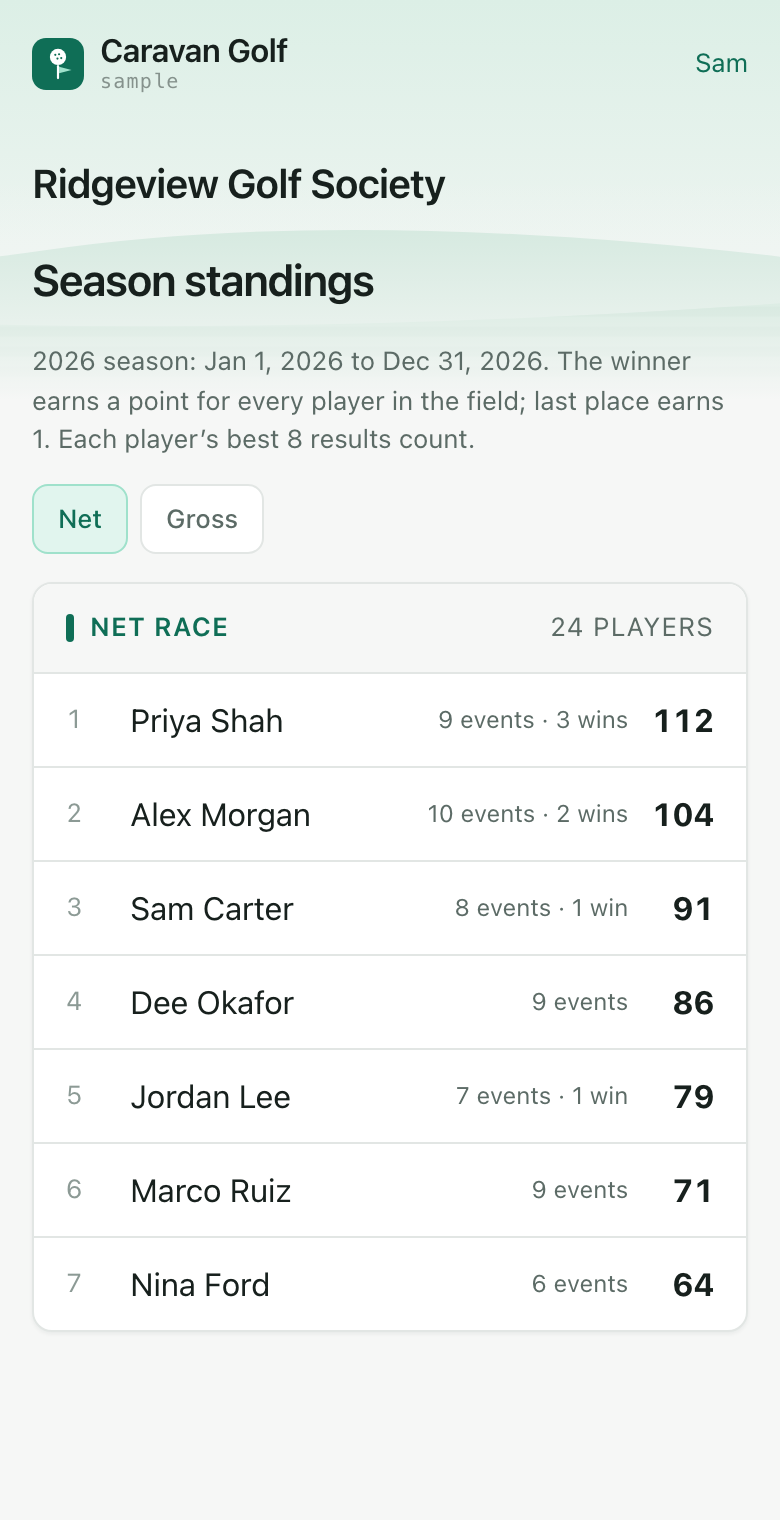
How. Nothing to do during the round. When an event's last round is closed, every player's place is kept and earns points by the season's rule. Tap a player to see each event that counted.
Gotchas.
- Everybody who played is included unless the CGO has left some out: the club's guests, players who didn't finish, or private events.
- Somebody who stopped early, or sat a round out, shares the places after the finishers. Somebody with no hole recorded isn't in that event, even if they played: only recorded scores count.
- Ties share. Two players tied for 2nd each earn the average of 2nd's and 3rd's points.
- A correction to a closed round updates the standings straight away.
- Every club event counts unless its organizer unchecked Counts for the season. Canceled events never count.
Setting up a season (CGO)
What it is. Each club has a season for the calendar year from the start. The CGO can change its rules or add others, a winter series for example, with their own dates.
How. On Standings, choose Season settings to change the current one, or Add a season. Choose how points are earned:
- By the size of the field. The winner earns a point for every player in the field, and last place earns 1. Turning up and beating a big field pays.
- By a points table. A fixed number for each place, 10, 8, 6, 5, 4, 3, 2, 1 unless you set your own. Places after the last number earn nothing.
- Stableford points. Each event's Stableford points, added up.
Gotchas.
- Who is included starts with everybody checked: guests, players who didn't finish, and private events. Uncheck any to leave them out. Places are then worked out among the players who remain, so with guests left out, the best member takes the winner's points.
- A guest is a player the club has marked as one: on Players, open Contact & sign-in and check Guest. Everybody else is a member, including somebody who also belongs to another club.
- Minimum players with recorded scores: an event counts only if at least that many players recorded a score. With a minimum of 4, an event where 7 of 12 recorded counts; one where 3 of 12 did doesn't.
- Count only the best-attended events limits the season to the N events with the most players who recorded at least one hole. Events tied at the cutoff all count. Leave it empty to count every event.
- Count only each player's best keeps a season fair to players who miss a few weeks: set a number of events, or leave it empty to count every result.
- An event counts in every season whose dates cover it.
- Deleting a season removes only the season. Every result stays.
Choosing the season's events
What it is. Under the standings, Events this season lists every event in the season's dates, whether it counts, and why not: left out, not played yet, outside the best-attended events, or a private event left out.
How. Organizers check or uncheck an event to count it in or out.
Gotchas.
- A check here applies to this season only. The same event can count in the year's season and not in a winter series.
- Until it's checked or unchecked here, an event follows its own Counts for the season box.